
Map navigation
Panning
To pan around the map, click and drag with your mouse, or use arrow keys on a keyboard, or turn on the map arrows in the user settings - see Map tools

On a touchscreen device you can slide to a new location on the map.
You can navigate beyond New Zealand to its offshore islands and Antarctica.
In the New Zealand view, panning or zooming down to Antarctica will switch to the Antarctic view.
Likewise, panning back up or zooming in to New Zealand will switch the map back to the New Zealand view. You can also use the toggle headings at the top right to switch between ‘show NZ’ and ‘show Antarctica’.
Zooming
To zoom in or out of an area on the map, you can:
- use the scroll wheel on your mouse
- use the + or - buttons at the top left of the map
- press the shift key and drag a box across the area you're interested in
- turn on the zoom-to-area button in the User settings icon at top right, then click on the zoom icon that will appears bottom left, and click and drag a box across the area you're interested in

- double click on the map
On a touchscreen device you can zoom in and out with 'pinch' and 'expand' motions.
Changing map layers and switching between basemaps
New Zealand view
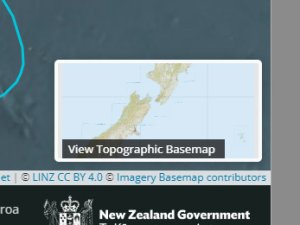
You can switch between the aerial imagery basemap and Toitū Te Whenua's topographic maps by clicking on the minimap in the bottom right corner
Layers
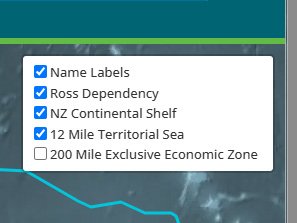
You can add or remove layers, such as the 12 Mile Territorial Sea, by hovering over the 'layers' icon at the top right of the map.

Antarctic view
Antarctic Topo50 maps can be turned on and off from the layers icon. The maps cover Ross Island, McMurdo Dry Valleys, and the Darwin Glacier – Hatherton Glacier region.

Otherwise, the rest of Antarctica is shown with a Toitū Te Whenua LINZ produced basemap. Note there are some gaps in the Antarctic basemap reflecting the data available at the time of its publication in 2020.
Using the search bar
To search for place names
Enter a name (or part of a name) in the 'Search place names, lat/long or grid reference' field above the map. For example, you could search for Rocky Creek by entering 'rocky' or 'roc'. If you search for a term like 'rock', your results will include any features classified as a rock, not just those with 'rock' in the name, for example Rhoscolyn Tor.
While you are typing, matching results will start to appear as a drop-down list. You can click on any name in this list to open it directly in the ‘Details’ panel which will pop up to the right of the map, or click enter (return) to complete your text search with all matching results, which will open the ‘Search Results’ panel on the right of the map showing the full list of matches as well as the total number of matches.
From this ‘Search Results’ panel list you can scroll down to click on the place name you want and the ‘Details’ panel will pop up for it. You can arrow back to the full ‘Search Results’ panel from the ‘Details’ panel.
Read more about our glossary of types of names
Where place names are duplicated they are shown together in one result in the 'Search place names, lat/long or grid reference' field list, with the number of instances of the name in the Gazetteer beside that result. Completing your search by hitting enter (return) or clicking the drop down will show all of those duplicated names in the ‘Search Results’ panel.


If there are no results, the search box will show a red border and state ‘Could not find any results’:

Search Results
‘Search Results’ are listed in alphabetical order in the panel. Close matches are listed first, with partial matches at the end of your search results. Official names are in bold. If there are multiple results the map will zoom to the extent of all results, and you will need to select the name you are interested in or refine your search.
Select the place you are interested in by clicking on it in the ‘Search Results’ panel or from the circles on the map. More information will then be shown in the 'Details' panel (see ‘Details’ panel below) for the place name, and the map will zoom to the location.
If there is only one result from your text search (for something unique like 'Slickenside'), when completing your search the 'Details' panel for that name will open immediately and the map will zoom to the location.
If you have search results in both New Zealand and Antarctica (for example, a search for 'glacier'), the map will zoom in or out to show all results without changing whichever view you are using.
If you are in NZ view, selecting a name in the Antarctic view from your search result will switch to the Antarctic view, and vice versa. If looking at the ‘Search Results’, they will be retained when switching between the views. However, if you have opened the entry for a place name the ‘Search Results’ panel will be cleared when switching map views.
Identifying names on the map
Search results on the map
The locations of the places in your ‘Search Results’ are shown as coloured points on the map. Up to 500 coloured points will be shown on the map to optimise rendering.
If you have more than 500 results, scrolling through the Search Results will change which are shown on the map. However, you may want to refine your search instead.
Highlighting
If you hover your cursor over a point on the map, both the place and its name in the 'Search Results' panel will be highlighted, and the name will appear on the map.
Likewise, hovering over a place name in the ‘Search Results’ panel will highlight the circles for the name on the map.

Showing lines and polygons (areas)
The lines and polygons that are associated with places such as rivers, railways or national parks are initially hidden when browsing the map. Instead, only a reference point (the coloured point) is shown.

When you open the ‘Details’ panel for a place name, any lines and polygons that have been captured for the name will always be shown in the first instance but can be turned off again.
If using the search field and filters to browse (see ‘Browsing and searching by map area’ below) or if you complete a search, you can click the 'Line/Polygon toggle' (the eye symbol) to show or hide all lines and polygons for your results.


If using the Gazetteer for the first time, you will need to activate the Line/Polygon toggle in the Map tools (see Map Controls below) from the Settings menu list.
Search by coordinates and grid references
To search by coordinates you can use these formats.
Decimal degrees format
- -43.01, -176.01 (commas and spaces)
- -43.01,-176.01 (commas, no spaces)
- -43.01 -176.01 (space only)
Decimal minutes format
- 62 01.02 S, 170 01.02 E (commas and spaces)
- 62 01.02 S,170 01.02 E (comma, no spaces)
- 62 01.02 S 170 01.02 E (space only)
Decimal seconds format
- 62 01 02.03 S, 170 01 02.03 E (commas and spaces)
- 62 01 02.03 S,170 01 02.03 E (commas, no spaces)
- 62 01 02.02 S 170 01 02.03 E (space only)
DMS (degrees, minutes, seconds) format
- 43°53'32.39" S 176°31'26.39" W (using degree symbol)
- 43d53'32.39" S 176d31'26.39" W (using 'd' instead of degree symbol)
- 43:53:32.39 S 176:31:26.39 W (using colon to separate values)
- 62 01 01 S, 170 01 01 E (using N/S and E/W with commas and spaces)
- 62 01 01 S,170 01 01 E (as above, with only a comma)
- 62 01 01 S 170 01 01 E (space only)
NZTopo50 grid reference (including Chatham Islands)
- BN28 702882
- BN28 702 882
These coordinate entries will all add a temporary pin marker to the map. The pin will be cleared once you open a place name or if you switch between NZ view and Antarctic view. The pin can also be cleared by clicking on it on the map.

Note that you cannot currently search using grid references for the offshore island topographic map series or Antarctic topographic maps.
For more information on NZTopo50 grid references, see the guides on the LINZ NZTopo50 maps.
Toitū Te Whenua LINZ’s online coordinate converter lets you convert grid references into other datums and projections, and back again.
Using the Advanced Search
You can narrow down your search by opening the 'View Advanced Search' box next to the search field to filter it by:
- Status – whether a name is official or unofficial
- Feature class/type – feature classes, such as rail, sea or terrain, or more specific types such as scenic reserve or conservation park
- Land District – administrative area
- Region – local authority region
- Territorial Authority – local authority cities, districts and territories.
Setting any of these filters will also affect drop down results when typing in the search bar and browsing results when just panning the map around without completing a search (see ‘Searching by map area and browsing’ below).
Resetting your search or the map
Click on the ‘x’ in the search bar and/or the ‘Clear’ button in ‘Hide Advanced Search’ to clear the search bar, all search results and filters.
In the NZ view, clicking the world button below the scale bar will reset the map to the default view of New Zealand. In the Antarctic view, clicking the world button which is below the pan arrows, resets the map to a view of the Ross Sea region in Antarctica. It will be greyed out when either map is in the default position.

Browsing and searching by map area
Default view
In the default view magenta dots for every place name will be shown on the map once you start searching the map. If you hover over the dot, the name will be shown in a pop-up box. Select a point to open the entry for a name and to view in the ‘Details’ panel.

When browsing for the first time in the default view, any lines (such as for a river) or polygons (such as for a National Park) will not be shown for performance. After completing a search you can return to the view showing points for every name by clearing your search.
Text and filter browsing
If you enter text in the search bar and/or set filters, but don’t hit enter (return), the text/filters will affect your browsing results.
Coloured points for up to 500 results will be shown on the map. A message will be shown under the search bar if there are more than 500 results.

The ‘Browsing Results’ box will also open on the right side of the map for all results within the map window.
Move around the map or zoom in to change the search results.

If there are line and polygons for those names, they will now be shown on the map if lines/polygons icon toggle is on.
Those points, lines and polygons that are shown on the map reflect which results are visible in the ‘Browsing Results’ – if you have many results, continue to refine the search, zoom in, or scroll down the list of results to change the results shown in the map window.
If you select a name from its point, line, or polygon in the map window, or from the ‘Browsing Results’ panel, the browsing search will end and the ‘Details panel’ for the name will open.
You can also end a browsing search by pressing enter or the magnifying glass in the search box. This will open the ‘Search Results’ panel with every entry in the Gazetteer for your search, not just the results within the map window.
'Details' panel
The 'Details' panel opens when you select a name:
- from the map
- in the ‘Search Results’ panel
- as a unique result from your search criteria
- directly from the text drop-down list. Only the first 20 matches will be shown.
When you select a name, the map will zoom to the place and the 'Details' panel will appear.
The 'Details' panel includes:
- whether the name is official
- the place name searched for
- where available, an audio clip of the pronunciation of the te reo Māori name
- the current status of the name
- the type of feature (for example, an island, rock or scenic reserve)
- a description about its appearance, location and map or chart references
- where available, the history, origin or meaning of the name
- events, such as when a name became official, and sub-events – if the original event was corrected or amended later
- other reference information
- the coordinates in decimal degrees and a Google Maps link
- the Land District
- other names for the feature.
You can also click on any other names that the feature has. For example, the details panel for Wānaka includes a link to Pembroke, which Wānaka replaced. For Anchor Island, an original Māori name Pukenui is collected in the Gazetteer.
User settings
Map display
To change how names are displayed in the map window, open the user Settings with the cog icon at the top right of the Gazetteer and scroll down to Geometry Styles.
You can adjust:
- the line weight (the default is 5, and you can enter a number 1 to 15)
- the colour sliders for search results and for highlights.
Click ‘Apply Styles’ when you are happy with your selection. If you click ‘Reset Styles’ the line weight will reset to 5, search results will return to the default settings of magenta, and highlighted names will be in yellow.
Map tools
By default, tools for zooming in and out, panning and resetting to the default map are shown at the top left of the map window and undo/redo buttons are shown the bottom right.
Further map tools can be found and turned on and off using the Settings panel behind the cog symbol at the top right.
The full list of map tools are:
- Zoom in and out – the + and – symbols for changing the zoom level.
- Pan – arrows for panning around the map
- Reset position – rests the map to default in either map view
- Measure – a tool to measure distance and/or calculate area
- Zoom to area – zooms to an area selected on the map
- Line/Polygon toggle – shows/hides line and polygons (areas) relating to place names when browsing or searching using the search bar and filters.
- Undo/Redo Pan & Zoom – buttons to go back and forth between places you have been on the map
Measure tool
If you turn on the measure tool it will appear at the bottom left of the map. Click on the button and ‘Create new measurement’ to start using the tool.
Coordinates will be given for the first point clicked, and from then on, at the last point of your measurement.
Next, click somewhere else to draw a line – the tool will give the distance between the two points.
Click again to continue measuring distance and to start calculating an area. The area will be given between the three points. You can continue clicking points on the map to increase the distance and change the area measured.

At any time, you can copy the coordinates, distances, and areas given by the measuring tool.
You can continue to move the map around while measuring, although you will not be able to select any results on the map. However, if you click ‘Finish measuring’ the measurement will continue to be displayed on the map and you can resume browsing and searching for place names. The measurement results can be hidden/shown by clicking on the green area measurement.
Sharing place names and search results
Every place name in the Gazetteer has a unique Name ID. This forms the URL of the name entry, eg Abel Glacier, Name ID 1: https://gazetteer.linz.govt.nz/place/1
You can also share your search, whether for place names, latitude/longitude, or NZTopo50 grid references. Any filters for place name searches are included on the URL, eg:
https://gazetteer.linz.govt.nz/search?type=latlng&q=-42,172
https://gazetteer.linz.govt.nz//search?territorial_authority=Hurunui+District&term=Green
Downloading Gazetteer data
You can download all of the names in the Gazetteer by clicking the 'Download' link in the footer. This will provide a first option to download a CSV file.
A second download link provides just Māori names with macrons as a CSV.
The data is also available from the LINZ Data Service (LDS) for use in a GIS, and the third link in the ‘Download’ link, will take you to the NZGB Place Names layer on LDS. In LDS there are also separate layers for the lines and polygons included in the Gazetteer.
https://data.linz.govt.nz/layer/51681-nz-place-names-nzgb/
https://data.linz.govt.nz/layer/52423-nz-place-names-lines-nzgb/
https://data.linz.govt.nz/layer/52424-nz-place-names-polygons-nzgb/
Glossary
For a detailed glossary of terms see page 96 of the Frameworks document:
Frameworks of the New Zealand Geographic Board Ngā Pou Taunaha o Aotearoa
For a list of feature types in English and te reo Māori, see the NZGB's features application:
New Zealand Geographic Features