To sign a package you need signing permission granted by your firm’s Landonline System Manager. Without this permission, you won’t see the Sign package button. You also need a Landonline digital certificate.
Clear unneeded certificate packages when signing
When a subdivision dealing is submitted and the associated survey plan includes TA certificate packages that remain unsigned, the dealing will be flagged with a warning that the survey has pending TA certifications. This prevents the dealing proceeding unless the flag is cleared or a LINZ officer has received confirmation from the relevant Territorial Authority (TA) that no further certifications are required.
To avoid delays, please ensure you delete any empty or superfluous TA certificate packages when signing the final certificates.
For help with deleting packages, see:
Delete a package
Prepare to sign a package
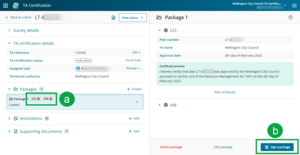
- Ensure all certificates in the package you want to sign are completed (a). If you have more than one package, you need to sign each package separately.
Select Sign package at the bottom right (b). In this example Package 1 is to be signed.
- The TA approvals panel opens.

Sign package in TA approvals panel
The left-hand panel shows the Package Summary with the combined Certifications that are issued when you sign the Package.

The right-hand panel shows:
a. an area to drag and drop (or select by browsing the computer) a digital certificate
b. a field to enter the certificate passphrase
c. a checkbox to confirm that you’ve read the entire contents of the Package summary
d. an expandable area to explain more about the digital certificate
e. a Cancel button
f. a Sign button.
Sign will be greyed out until you select the digital certificate, enter the passphrase, and tick the checkbox.
1. Connect your digital certificate
To sign Packages, you need to connect the Landonline Digital Certificate that has been issued specifically to you for creating digital signatures.
- If you use Microsoft Edge or Google Chrome you should only have to connect your certificate once.
- Other internet browsers may require you to choose your digital certificate every time you sign.
If you have trouble locating your Digital Certificate, please check with your IT department, your Landonline Trusted Contact, or contact our Customer Support on 0800 665 463.
Select the arrow to the left of the text Choosing a digital certificate to see more information on this process.

To connect your digital certificate:

- Ensure your Digital Certificate is on your device.
Either:
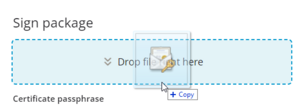
- drag and drop your digital certificate into the box – shown below
- browse for your digital certificate and select it.

2. Enter your Certificate passphrase.
If you get your passphrase wrong, you have 2 more attempts before you’ll have to re-start the signing process.
If you can’t remember your passphrase, call our Customer Support team on 0800 665 463.

3. Select the checkbox to confirm
Select the checkbox to confirm you’ve have read the entire contents of the Package summary.

Sign becomes active and changes to a blue box.
4. Sign the package
Select Sign at the bottom of the screen to proceed.
Select Cancel to go back to the work item.

You’re still logged into Landonline.
However, to continue the signing process, you need to re-authenticate by providing your Landonline password again.
A separate Authentication request pop-up window opens.
5. Action the Authentication request
You should see an Authentication request window. See below for what do to if you don’t see this.
Enter your password in the Landonline password field.

Select Confirm password.

If you get your password wrong, you have 4 more attempts before you’re locked out.
- Use the Forgotten your password? Reset it here link on the Login screen to reset your password.
See Forgotten your Landonline password. - Or contact LINZ Customer Support 0800 665 463 for assistance.
If you only see the "Enter password in the popup" message
If you only see the message below and not the Authentication request window, you may need to enable pop-ups in your browser.

For assistance in enabling pop-ups in your browser, refer to one of the links below:
If you’re asked for a URL use https://app.landonline.govt.nz/ta-cert
You may need to refresh your Landonline page after you’ve enabled popups.
Disable ad blockers and other extensions if necessary
Some common browser extensions – such as ad blockers – may also prevent pop-ups. You may need to disable them for the Landonline website.
Then:
- select Dismiss in the Enter password in the pop-up message, and
- select Sign in the Authentication request window.
6. Package signing completed
Once you have completed signing, a Package signing completed pop-up appears.

Select Download document to open the signed certificate in your browser. You can print or save it if required.
The Signed certificate can also be viewed and downloaded from:
- Supporting documents at any time after signing
See View and download supporting documents - the package details panel via View Certificate
See View certificate
Select Dismiss to return to the TA certification screen.
When you have completed the signing process:
- the package shows as Signed under Packages in the left panel
- the generated Territorial Authority Certificate document for the package shows in the Supporting documents list
- Unsign package shows at the bottom left of the package details panel
- View certificate shows at the bottom right of the package details panel.

View certificate
You can easily view a certificate from the package details panel once the package is signed.
Select View certificate at the bottom right of the package details panel.

The certificate opens as PDF in a new browser tab, where you can then print, save, or download using your standard PDF browser controls.
Enable pop-ups
You will need to ensure pop-ups are enabled in your browser before attempting to open supporting documents or View certificate.
See: Why can’t I view my supporting documents or the Help content?
If the supporting document for the signed package has not yet been generated by Landonline, the View Certificate button will be greyed out. You will see “Generation of the certification document has not yet completed” if you hover your mouse over the button.

Unsign a package
To unsign a package you need signing permission granted by your firm’s Landonline System Manager. Without this permission, you won’t see the Unsign package button.
When you unsign a package, Landonline:
- unsigns the existing package,
- creates a duplicate of the original package, with a new number,
- removes the signed TA certificate from Supporting Documents,
- adds an Annotation noting the package has been unsigned, and
- moves the work to the Unassigned work tab.
To unsign a package:
Select the package you want to unsign from Packages on the left-hand side. The package opens on the right.
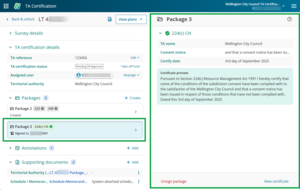
Select Unsign package at the bottom left of the package details panel.
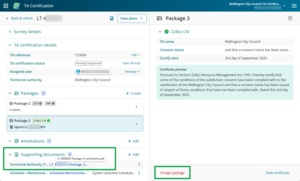
Note that the Supporting Documents (2 in this example) include a Territorial Authority (TA) Certificate relating to the signed package.
A warning message asks if you’re sure you want to unsign the package and notes this can’t be undone.
- Select Cancel to return to the package
- Select Unsign to continue.

Once unsigned, your original package won’t be visible.
- A new package will appear, which is a duplicate of the original package, but with a new number. The certificates remain ‘completed’. You can Delete, Edit and /or Sign this package.
- A message appears in Annotations to say “Package x has been unsigned. Please see new package y” and the date. If you don’t see the message, refresh your screen.
- The work moves to Unassigned work. You will need to assign this work to yourself to sign the new package.
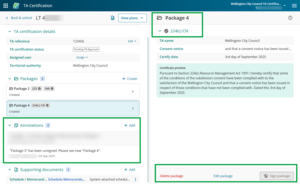
The previous signed TA certificate in Supporting documents is no longer available. In this example there is now only 1 Supporting document.
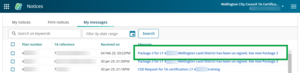
The Notices and My Messages applications show the package has been unsigned.
Example Notice of package unsigned:

Example Message of package unsigned: