
The automated survey report’s format is designed to help you enter the correct information for your survey.
1. Open the Survey report panel
Select the Survey report icon from the Workflow control bar to open the Survey report panel.

2. Navigate the Survey report panel
Scroll through the Survey report panel using the scroll bar at the right of the panel, or by using your mouse scroll wheel.
Jump to section
You can jump directly to a section of the survey report by left-clicking on a section heading in the left-hand panel.

Progress indicators
The pie wedge progress indicators show your progress through each section of the survey report.

- The pie turns green as the section is completed.
- A tick is displayed when the section is complete.

Saving the survey report
The survey report is automatically saved as you go. It auto-saves when you:
- close the Survey report panel
- exit Survey capture to return to My Work or access Plan Generation.
When you reopen the Survey report panel, you will see ‘Last updated by’ at the bottom left of the panel. This shows details of the last change made to the survey report:
- the name and user ID of the person who made the change
- the time and date the change was made.

Download the survey report
You can download the survey report at any time to view or print as PDF.
Select the PDF icon at the top right of the panel.

The survey report will download as PDF to your computer. It will include any data you have entered in the report at the time of download, and the time and date:
- Survey was last edited
- Survey report was last edited
- PDF download was generated.
3. Complete the survey report sections
Every section of the automated survey report must be completed before you submit your survey. Some questions are pre-populated from the data in your survey.
- Each question has information to explain what is required.
- There are links to relevant parts of:
- Cadastral Survey Rules 2021
- Standard for lodgement of cadastral survey datasets – LINZS70000
Clicking on one of these links will open the relevant section in a separate browser tab.

Comments fields
The comments fields are free-text. Spell-check is available if you have it enabled in your browser.
You can copy and paste comments from other applications into the Comments fields.
- Do not copy and paste invalid symbols such as emojis.
Yes/No questions and checkboxes
Some of the Yes/No questions will be pre-answered from the data in your survey.
- You will need to add a comment to any Yes answers.
When you choose No, ‘Not applicable’ will be automatically added to the comment field.
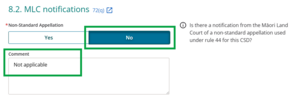

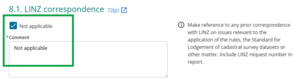
You can tick the Not applicable checkbox for questions that are not relevant to your survey.
‘Not applicable’ will be automatically added to the comment field.

Attaching the survey report
The automated survey report is automatically attached to your CSD on submission of the survey.
If a section of the survey report is incomplete when you attempt to submit the survey, you will see a failure in the submission rules panel. Complete the missing section(s) to submit your survey.
There can be only 1 certified survey report associated to the survey.
When you submit your survey, if there is a Survey report type supporting document attached to your survey, the automated survey report will be discarded.
For more information on attaching a survey report, see:
Attaching a survey report