
Resolve warnings before attaching as supporting document
If your Schedule / memorandum has any warnings, these should be resolved before attaching it as a supporting document. If you submit your survey with a warning triangle still showing in the attached supporting document you are likely to get requisitioned.

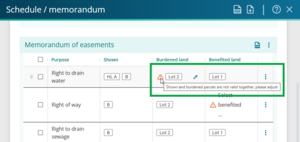
Check the Schedule / memorandum panel for any orange warning triangles and resolve these. Hover your mouse over a warning triangle to see what needs to be resolved.
Select the Attach as supporting document icon to automatically add the Schedule / memorandum in its current state to the supporting documents for the survey. This will overwrite any previous System attached schedule/memorandum.

The System attached schedule/memorandum will now appear in the Supporting documents panel. You can view or download this by selecting the 3-dot menu to the right.
See also: View supporting documents
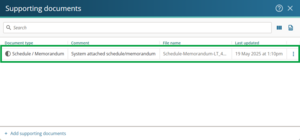


The schedule/memorandum is automatically converted to greyscale when it’s attached to supporting documents.