
Reminder: Always check all plan sheets prior to lodgement
Before submitting your survey, visually inspect all diagram pages in the title plan and record of survey to check they look correct.
Warning:
Working in multiple browser windows or tabs:
Having the same dataset open in two browser windows or tabs at one time is likely to create data loss issues.
To prevent this happening:
- ensure you exit Plan Generation before undertaking Capture edits
- only access Plan Generation from Capture (the Plan Generation icon in the Workflow control panel).
Introduction to Plan Generation
Plan Generation replaces Legacy Landonline Plan Generation.
In Plan Generation in New Landonline you can:
- display layers of existing spatial data to give context to the survey
- automatically define title and survey related diagram images
- define areas to create more detailed diagrams for title and survey related data
- select existing primary parcel boundaries to indicate Record of Title (RT) boundaries – also known as estate boundaries
- include underlying data such as appellations and road names
- include abuttal boundaries
- label diagrams
- add text (labels) and lines to a diagram
- edit diagrams, labels, coordinates and lines
- define diagrams within diagrams (nested diagrams).
For aspatial plans, such as Unit Title or Cross Lease, you can include a scanned plan image as a Plan Graphic or PSB NonPrimary Graphic supporting document in Survey capture. This will be included in your generated plans.
Learn about key differences with Legacy Landonline Plan Generation
Landonline Plan Generation defines the following diagrams as the basis for plans:
- survey diagram - the System Generated Survey diagram
- title diagram (lots and sections) - the System Generated Primary diagram
- title non-primary parcel diagram (easements, etc.) - the System Generated Non Primary diagram
- user-defined detail survey and title diagrams.
From the system generated diagrams, Landonline forms pages in Layout Plan Sheets and generates:
- Record of Survey
- Title Plan
You can add additional pages in the layout sheets where you can add your user-defined diagrams to clearly show detailed information and add clarity to your plans.
For aspatial plans where there are no marks or vectors captured, such as Unit Title or Cross Lease datasets, see:
Plan Generation for aspatial datasets
Plan Generation for spatial datasets
Before using Plan Generation ensure your survey is completely captured and all new parcels are linked. We recommend running the pre-validation report before you open Plan Generation, so you can address any issues.
You can use Plan Generation before your survey is completely captured if you’re confident the Title Sheet will not change and you need to generate a plan for a TA certification.
Warning message if survey capture isn’t completed
Before you can open Plan Generation you need to:
- capture at least 1 vector or boundary line between 2 marks
- record a purpose for all marks
- specify at least 1 mark as an existing Landonline mark
- make all marks either a To or From mark for a vector or boundary line
- define all boundary lines in your survey as part of a parcel definition
- link all parcel attributes to spatially defined definitions.
If survey capture is incomplete and you try to open Plan Generation, you’ll see a warning such as the example below of marks not connected to vectors.

You will need to resolve any issues before you can use Plan Generation.
Open Plan Generation

You can open Plan Generation from either:
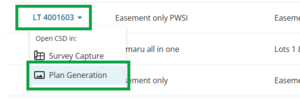
My Work by left-clicking on the CSD reference and selecting Open CSD in Plan Generation from the drop-down menu
Survey Capture by left-clicking the Plan Generation icon on the Workflow toolbar on the left-hand side of your Survey Capture spatial view.
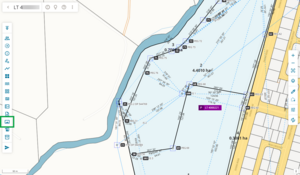


If survey capture has been completed, this takes you to the Plan Generation landing page.

The first time you open Plan Generation you will see a pop-up message reminding you to ensure you have the survey open in only 1 browser window. You can select Don’t show me this again to prevent the pop-up appearing each time you enter Plan Generation. Select Continue to close the pop-up.

From the landing page, you can open:
- Define Diagrams
- Maintain Diagram Layers
- Label Preferences
- Layout Plan Sheets.
Use the panel at the top left of the landing page to:
- Return to Survey Capture
- Return to My Work
- open Plan Generation help content in another browser tab.
Left-click on an option to select it.

Plan Generation for aspatial datasets
Once you have completed your aspatial capture in Landonline, and added a Plan Graphic or PSB NonPrimary Graphic supporting document type, you can generate plans using the Plan Generation icon found in the workflow toolbar. Note that the option to open Plan Generation from My Work is unavailable for aspatial datasets.
Plan Graphic or PSB NonPrimary Graphic
When this supporting document type is selected, the attached documents are incorporated into the Record of Survey or Title Plan images, allowing the survey to be submitted without spatial capture.
Complete Plan Generation for aspatial plans
Select Plan Generation from the Workflow Toolbar on the left-hand side of your Survey Capture spatial view.
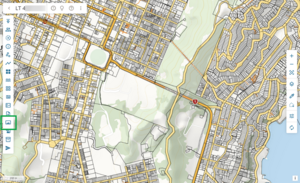

Warning if survey details are incomplete
Before you can open Plan Generation, you need to complete the Date field in the Survey Details panel. If you haven’t entered a date, you’ll see Message 29055 when you try to open Plan Generation.

You can leave other fields blank, such as the Description, however these will need to be completed before submission. You will also need to regenerate your plans if you make changes to these fields.
Warning if plan graphic supporting document is not attached
If you haven’t attached a plan graphic, or have attached the wrong type, you will see Message 32056 advising what you need to attach to the survey.
Message 32056 – Plan Graphic not attached:

Message 32056 - PSB NonPrimary Graphic not attached

A message appears advising that Landonline will now generate the digital plans for the survey.
Select Continue.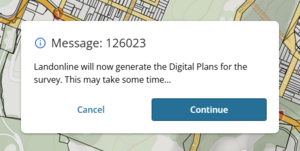
Plan generation will start processing. Once processed, a message appears at the top right of the screen: “Plan generation successfully started”.
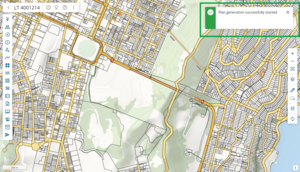
- The compilation batch request is sent to the server, and once the batch is completed a copy of the compiled Record of Survey and Title Plan are sent to the signing surveyor and primary contact via My messages. You can then view and download the attachments as needed.
See also: My messages.


Regenerate plans
If you have previously generated plans for the survey and select Plan Generation, you will see a message advising that a full set of digital plans have already been generated for this survey.
Select Yes to generate a new set of digital plans.

The compilation batch request is sent to the server, and once the batch is completed a copy of the compiled Record of Survey and Title Plan are sent to the signing surveyor and primary contact via My messages. You can then view and download the attachments as needed.
See also: My messages.