
General Landonline notices are displayed in both the My messages and My notices tabs in the Notices application.
Plan compilation messages are found only in My messages.
Messages you’ll see in My messages include:
- Plan Compilation / Generated Plans
- CSD Pre-allocation References
- CSD Lodgements
- Survey Requisitions
- CSD Approvals
- CSD Deposits
- CSD Deletions
- CSD Withdrawals
- Exception processing notices
- CSD Selected for processing
- TA certification requested/completed/unsigned.
Plan compilation messages
When a plan is compiled in Plan Generation, a copy is sent to both the primary contact and signing surveyor via My messages.
However, only the signing surveyor will receive the compiled plans in My messages at approval and deposit stages.
Navigate to My messages
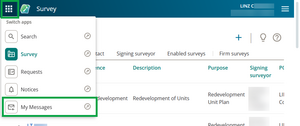
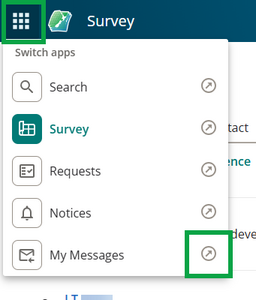
Select the 9-dot menu at the top left of My work page to open the app switcher.
To open My messages, you can either:
select My Messages to open My messages in your current browser tab
select the arrow next to My Messages to open it in a new browser tab.


You can also access My messages by selecting Notices in the app switcher, then selecting the My messages tab.

Search for a message using keywords or filter by date range
Messages are automatically sorted by date.
You can Search on keywords or Filter by date range to search for a specific message.
You can also search using CTRL+F, however this only searches the currently displayed list of messages. There may be more messages that won’t load until you scroll further down the list.
Search on keywords
Search on keywords searches for your keyword(s) in all columns except Received on. This search is not case sensitive and searches partial words.
- Enter a keyword in the Search on keywords field at the top left of the panel.
Select Search.
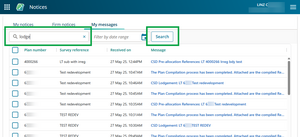
The list of messages is filtered to show only rows that contain the keyword.
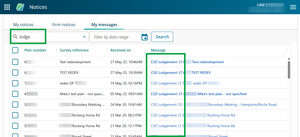
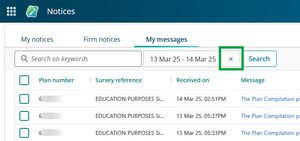
To clear the current keyword search and view all messages, select X in the keyword field.
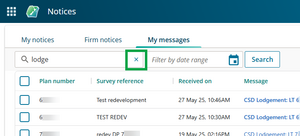


Filter by date range
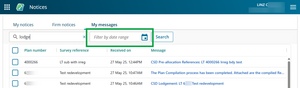
Left-click in the Filter by date range field at the top of the panel.
Left-click on each of the Date start and Date end fields and select your start and end dates.
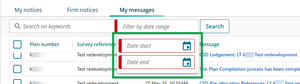


If you want to see records for a specific date, set both the Date start and Date end to the required day.
Select Search.
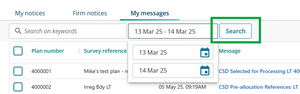
To clear the filter by date range search and view all messages, select X in the keyword field.


Message summary panel – view or download messages
Left-click anywhere along a row to select and open the message summary panel.

Ticking the checkbox next to a message only gives you the option to delete the message, not view or download it.
See: Delete messages
The message summary panel opens on the right of the screen.

Depending on the type of message, the summary panel contains 1 or more attachments.
Select the down arrow to the right of an attachment to choose between:
- View – to view the attachment as pdf
- Download – to download the attachment in the default file format.

Tip: You can also open and view as PDF by left-clicking on the attachment instead of the down arrow.

View attachment as PDF
Select View to open the attachment in a new browser tab in PDF format.

From this browser window, you can:
- download the attachment as a PDF file (a)
- print the attachment (b).

Your icons may look different depending on the browser you use. Our screenshot is from Chrome.
Download attachment in default file format - PDF, RTF or TIF
Select Download to download the attachment to your device.

Attachments download in their default file format:
- Standard notice attachment – PDF
- Requisition notice attachment – this may be RTF or PDF
- Plan compilation / generated plan – TIF.
Delete messages
You can delete messages from My messages.
- Plan compilation messages will be permanently deleted as they are found only in My messages
- All other deleted messages will still be available in My notices.
Select message(s) for deletion
Left-click the box next to each of the message(s) you want to delete. A tick appears in each selected box.

To select all messages, left click the empty box at the top of the list.

To select multiple consecutive messages at once, left-click in one box, hold down Shift and select another box. All rows between the first and second box are selected. You can bulk deselect the same way.

Deselect messages
Left-click in a ticked box to deselect the message.
To deselect all selected messages, left-click the grey box at the top of the list.

Delete selected messages
As you select messages, the Delete selected (x) button appears at the top right of My messages next to Search. The number in brackets is the number of messages that are currently selected.

Select Delete selected (x). A warning message appears, advising you are about to delete messages and that this can’t be undone.
Select Delete to delete the selected message(s). This is irreversible.

The selected messages are immediately deleted from My messages.
Plan compilation messages are only found in My messages, so are permanently deleted.
All other deleted messages can still be found as notices in My notices.
Delete a single message from the message summary panel
You can also delete a message from its summary panel.
Select Delete this message at the bottom of the panel.

A warning message appears. Select Delete to delete the message. This can’t be undone.

The message is immediately deleted from My messages.
Plan compilation messages are only found in My messages, so will be permanently deleted.
All other deleted messages can still be found as notices in My notices.