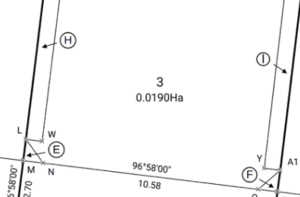
See also: Key differences with Legacy Landonline Plan Generation
For other known issues in Landonline Survey, see:
Known issues for Survey
Plan Generation distortion
Landonline release 3.7
Since Landonline release 3.7 was implemented, Plan Generation distortion enhancement has caused the following issues:
- Errors encountered when opening Plan Generation layout sheets.
- Geometry errors encountered when opening Plan Generation, Define Diagrams or Layout Plan Sheets.
- No errors occur when opening layout sheets, but laid out data is now not what it previously looked like.
Toitu Te Whenua LINZ appreciates that this is causing major problems for some Landonline Survey users and are giving high priority to resolving these issues. In the meantime:
Where (a) or (b) occurs, please phone customer support on 0800 665 463 with:
- the CSD number
- the error message.
A Landonline Application Specialist will contact you and work with you to open the plan successfully in plan Generation.
Where (c) occurs:
- Review all layout sheets for distortion.
- In survey capture, check your 2 adjustment reports in pre-validation for high SEUWs or large miscloses.
If there are no issues with the reports, then please phone customer support on 0800 665 463 with:
- the CSD number
- screen shots of the distortion.
A Landonline Application Specialist will contact you and work with you to get the plan to display correctly
As a result of the Plan Generation distortion enhancement, there is a greater emphasis on ensuring that all Y rules are satisfied before opening Plan Generation. More importantly, it is essential to check the entire Pre-validation report, in particular, the 2 adjustment reports in the Adjustments tab. If gross errors are reported in either of these adjustments, the risk of things going wrong in Plan Generation is high, so you should ensure that any data capture errors are resolved before attempting to go into Plan Generation.
If you are unsure how to proceed, please contact customer support on 0800 665 463.
Status of submitted plans not updating correctly on Record of Survey/Title plan
The Plan Compilation service is not always updating the Status of plans that have been submitted.
Although the status correctly shows as Submitted in Landonline (Diagram 1), on the Record of Survey and Title plan header, the status may still incorrectly show Pre-allocate (Diagram 2).
Your submitted plan will be processed as usual.

Diagram 1.

Diagram 2.
Define Diagrams and Layout Plan Sheets buttons not working
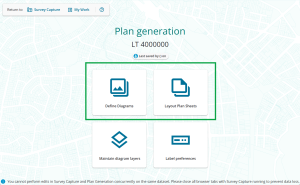
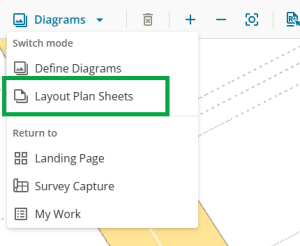
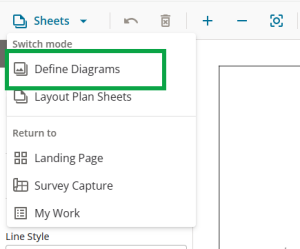
The buttons to navigate to Define Diagrams or Layout Plan Sheets sometimes stop working.
This can occur:
on the Plan Generation landing page
in Define Diagrams, navigating to Layout Plan Sheets
in Layout Plan Sheets, navigating to Define Diagrams.


If this occurs, refresh the browser window. You can either:
use the refresh/reload icon in your browser window
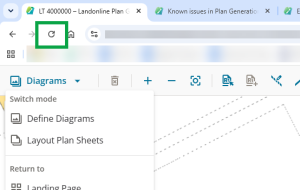
- press CRTL+R or F5 on your keyboard (Windows OS)
- press Command+R on your keyboard (mac OS).

Child diagram labels not displaying in layout sheets
A child diagram label won’t display on its “parent” user-defined diagram in the layout sheets if:
- any part of the “parent” user-defined diagram extents are outside the system generated diagram AND
- the child diagram is wholly within the system generated diagram.
Instead, the child label will appear on the system generated diagram, as that becomes its “parent”.
In the example image below, user-defined Diagram A extends outside the system generated primary diagram (the green dashed lines). The system generated diagram becomes the child of Diagram A. Diagram AA and AB, in turn, become the children of the system generated diagram.

In the layout sheets:
- Diagram A doesn't display any labels, because the system generated diagram shows them.
- In the system generated diagram, you can see the labels for Diagrams AA and AB.

If you choose not to use the system defined diagram in your layout sheets you can either:
- re-define the “parent” user-defined diagram so no part of it extends outside the system generated diagram, or
- add user-added text to the “parent” diagram for the child diagram label.
For more information, see How Landonline labels nested diagrams in Layout Plan Sheets
Long skinny diagrams snapping to layout sheet borders and then unable to be resized
This issue occurs when working with diagrams in the layout sheets that are very long in proportion to their height.
When you resize the diagram, the diagram “snaps” to the outer edges of the sheet. This will prevent you from resizing or reducing it further. You can still move the diagram up or down on the layout sheet.

If this occurs and is causing you problems, you may need to return to Define diagrams and either:
- trim unneeded length off the diagram using the reduce diagram tool.
See Reduce a user-defined diagram if possible, redefine the diagram as shorter segments, or with more height in proportion to its length.


CTRL+C and CTRL+V not working when caps lock on
CTRL+C and CTRL+V (copy-paste shortcuts) do not work in the layout sheets while caps lock is on. However, you can still use the copy paste functions from the label or line menus.

User-added labels stacking in layout sheets when copy-pasted
When copy-pasting multiple user-added labels together, sometimes they lose their original spatial relationship and paste all on top of each other in 1 place. You then need to move each label individually.

You may need to copy-paste each label 1 at a time to prevent this occurring.
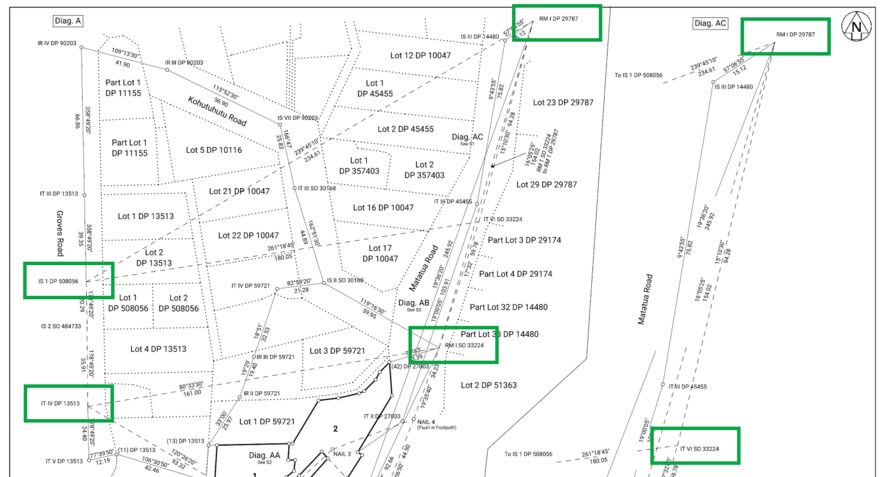
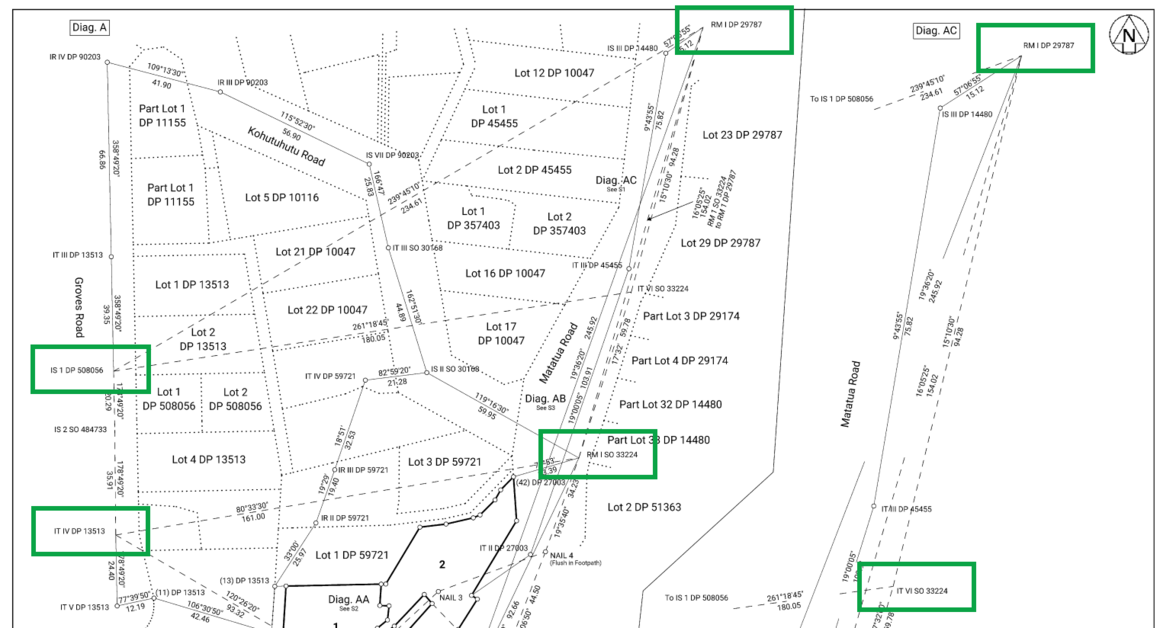
Old marks' symbols missing from survey sheets in Record of Survey
We have found that some old mark symbols are being removed from the survey sheets in the Record of Survey during plan compilation.
You will need to:
- visually check your survey sheets in My messages before submitting, or before resubmitting after a requisition, and
- if you find any missing symbols, recompile your plans and recheck again before submitting.
Example of missing mark symbols:
System error has stopped plan from compiling correctly / Black pages in preview layout
Some users are getting black pages when previewing their layout sheets. The system is designed to also detect these when you compile your plans.
Expected behaviour:
If the system detects black pages during plan compilation, the signing surveyor and primary contact will get a message via My Messages alerting you that plan compilation was unsuccessful and to recompile the plans:
‘A system error has stopped this Plan from compiling correctly. Please retry by clicking Compile’.
Height-limited primary parcels captured in the ‘Strata’ layer are not depicted with a thick line type
Boundary lines for height-limited primary parcels captured in the Strata layer are depicted with the incorrect line thickness in Plan Generation.

As these are primary parcels they must be depicted with a thick line. See Cadastral Survey Rules 2021, Schedule 7, Table 10.
To ensure your diagrams are compliant:
Manually add a line in the same location as the thin system generated line.
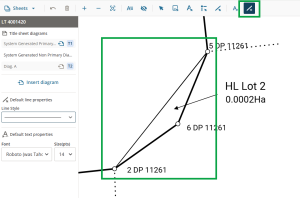
Use the Select line tool to right-click the line and select Properties. Change the line width to 2.0.
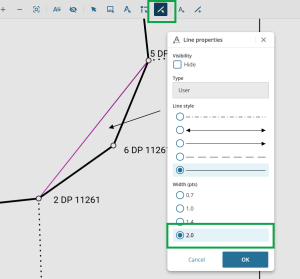
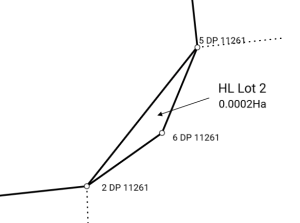
The line is now correctly depicted as a thick line.


For more information on adding or editing lines in Layout Plan Sheets, see:
Thickness of truncated lines for boundary reinstatement surveys in Layout Plan Sheets
Truncated lines are also commonly known as broken lines.
This issue only occurs for Simple and Complex Boundary Reinstatement CSDs, or other CSDs where parcel boundaries have been captured with distance or bearing type as Rein Adopted or Rein Calculated.
In the layout sheets, if a line is truncated on a diagram, that is, the entire vector isn't showing, the line changes to a thin line.
In this example, the first diagram shows the reinstated boundaries as thick lines, because the vectors are shown in full:

In the second diagram, only 1 reinstated boundary is shown in full, with a thick line. The other 2 reinstated boundaries are truncated, or broken, so they display as thin lines:

This is a functionality issue in Landonline, which we are looking to get fixed in the future. As long as there is 1 diagram with the entire reinstated boundary line in it, Toitū Te Whenua LINZ should not requisition the survey for the line showing incorrectly when truncated.
If you are incorrectly requisitioned for this issue, please phone customer support on 0800 665 463, or you can respond directly to the requisition and refer to this known issue.
Unused diagram labels showing in compiled plans
Any child labels for diagrams that you have defined but then haven’t used in your layout sheets will still show on the larger diagram in your compiled plans. These labels will display See T? or See S? in title sheets or survey sheets respectively.
In Legacy Landonline these unused labels were automatically removed from the compiled plans.
You will need to delete any unused diagrams from Define Diagrams before compiling your plans.

Panning issues in Layout Plan Sheets
There are issues with panning to layout page edges with certain combinations of system display scale and browser zoom. Higher zoom levels for either or both can make the issue occur.
- Display scale is set via your operating system. It is often set to more than 100% to increase text/icon size on small screens (for example laptops) or hi-res screens (for example 4K monitors). On Windows you can find this by navigating to Settings > System > Display > Scale.
- Browser zoom is usually set in the address bar of your browser. This is independent of the zoom used in Layout Plan Sheets to zoom in or out of diagram elements.
If you experience the panning problem, you can reduce the display scale, the browser zoom, or both, to stop it happening.
This table shows some examples of display scales and maximum browser zoom combinations that we’ve tested and should allow panning to work without issues.
| Screen | Display Scale | Max. browser zoom |
|---|---|---|
| 1920 x 1080 - 24" external monitor | 100% | 110% |
| 1920 x 1200 - 15" laptop | 100% | 110% |
| 150% | 75% | |
| 3840 x 2160 - 27" external monitor | 100% | 100% |
| 125% | 80% | |
| 150% | 67% | |
| 3440 x 1440 - 34" ultra-wide external monitor | 100% | 100% |
| 125% | 67% |
Slowness when working in layout plan sheets with large diagrams
When a page in Plan Generation contains a lot of information, manipulation of lines and labels in that page can be very slow. The layout sheets may also take a long time to open.
This may occur when a diagram on the page you are working on:
- covers a large area
- includes many new parcels, lines, and/or marks
- displays a large number of underlying parcel boundary lines.
Diagram 1 shows an example of a diagram that may result in slowness in the Layout Plan Sheets:

Diagram 1.
If you are experiencing slowness in your layout sheets, you may need to do one or more of the following:
- Create a user-defined diagram more closely following the extent of the survey, rather than using the system generated diagram.
- Turn off information such as boundary mark labels, non-primary parcel dimensions labels, and existing parcel labels in maintain diagram layers before entering layout plan sheets (see example below in Diagram 2).
- Remove all existing parcel information from the main sheet and show the underlying parcels only on the enlarged diagrams as required by CSR 2021 rule 97(4). There's no requirement in CSR 2021 to show the underlying parcel information on the main diagram.
- Hide as many lines as possible if you want to keep the system generated diagram and the underlying parcel information.

Diagram 2.
Missing mark labels, bearings and or distances in layout sheets
Landonline release 3.19
After diagrams have been laid out on the layout sheets, some users are finding that not all mark labels, bearings and/or distances are displaying. This happens even though these layers and labels are turned on in Maintain diagram layers (for both diagram type and individual user-defined diagrams).
Note: Also check that the affected labels haven’t been hidden. Turn on View hidden objects in layout sheets.
See: View/hide all hidden objects on layout sheets

Below is an example of missing mark labels (highlighted yellow) yet all the other mark labels are displaying:

If you find any diagrams that you have laid out are missing any mark labels, bearings and/or distances, the only way to get those labels back is to:
- Close Layout plan sheets
- Open Define diagrams
- Re-define NEW diagrams over any that are corrupt
- Delete the original diagram(s)
- Open Layout plan sheets
- Lay out the new diagram(s) and check that all labels are now displaying.
Resizing your diagrams in Define diagrams will not resolve this issue.
If no labels are displaying at all over the entire diagram or layout sheet, this is different than the above issue. In this case, check that you have added the appropriate layers in Maintain Diagram Layers.
See Maintain diagram layers
Road names in Plan Generation layout sheets
Landonline release 3.16
There is an on-going issue with road names in Plan Generation layout sheets.
Where new surveys create new road polygons, the new roads are normally captured as 1 new polygon and given an appellation in that survey.
In the example below, the plan created 2 polygons for road (Lot 901 and Lot 902). You can see there are several road names inside Lot 901 and Lot 902.

Diagram 1.
In the spatial window, the road polygon for lot 902 in Diagram 1 above is the area highlighted red in Diagram 2 below. You can see that there are 3 different road names in the 1 polygon: Meadows, Charlbury and Lydiard Drives.

Diagram 2.
In the DCDB days (Digital Cadastral Database) under the Department of Survey & Land Information (DOSLI), we spent time and closed off road polygons to create smaller polygons for roads to satisfy councils and other end users of our data. This is not the case for new surveys that create new road formations.
In Plan Generation Define diagrams, this is reflected as per the spatial view above (Diagram 2). The road names identified in green below in Diagram 3 are all contained within 1 polygon (the formation of Lot 902 from Diagram 1 above).

Diagram 3.
When the layout sheets are opened, the system looks for the polygon shapes that are within the diagram created in Define diagrams.
In this example, as the adjoining road names (Charlbury Drive, Meadows Drive, and Lydiard Drive) are contained within 1 polygon (to define Lot 902 on the abutting plan), at least one of these road names will be incorrect.
In this instance 2 of the road labels (for Charlbury Drive) are incorrect:
- (a) should be Meadows Drive
- (b) Lydiard Drive is missing entirely
- (c) should be Northmoor Boulevard (from the neighbouring polygon)

Diagram 4.
To amend these road names:
- Select the label and hide it.
See: Hide an object on the layout page - Add user added text to add the correct road name positioned at the correct location on the layout sheets.
See: Add label
There may be other situations where you see an incorrect road name appear in the layout sheets. Please ensure that you check your layout sheets before compiling plans, and undertake the following steps to correct any incorrect road names.
Where an incorrect road name is displayed in the Layout Sheets, either:
Option 1: Move and replace the label
- Select the road name label.
- Move the label to the correct location if it’s displayed in the wrong place.
See: Select and move objects - Add the correct road name via Add label to the correct location.
See: Add label
Option 2: Hide and replace the label
- Select the road name label.
- Hide the label.
See: Hide an object on the layout page - Add the correct road name via Add label to the correct location.
See: Add label
Saving your work
- If you exit layout plan sheets via Close layout then Save and leave, you may be prompted by an incorrect ‘Unsaved changes in Layout Plan Sheets’ warning message when you next open the survey from workflow.
- Auto-recovery may not trigger if your only change is with user-added text or lines.
- If you have any features selected when the end of day warning appears, they will be automatically de-selected and you will need to reselect them.
- On larger plans, when you select Save layout, there may be a significant delay before the ‘Layout saving’ pop-up appears, so it looks like Plan Generation isn’t responding.
On large plans, a 'Page Unresponsive' message may appear in your browser when you select Save or Preview layout. Select Wait to continue.
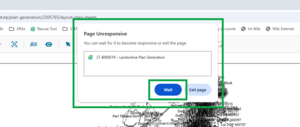

Labels in layout sheets
- If you have multi-selected labels and include an irregular line label, the Hide 00” action will also delete any added line-breaks from the irregular line label.
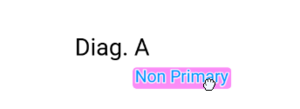
- The page reference label may overlap the diagram label (for example See T2 overlapping Diag. A) after the label is moved then reverted to its original location. Select and drag the labels to correct them.
For a user-defined non primary diagram, the diagram label is not attached to the non primary label. This means they can be moved independently. It’s recommended that you select them both and move them together.
If you select Original location for an arc label, the label moves but sits at 90 degrees instead of being aligned to the arc. Right click on the label and select 'Align label to line', select the arc, then move the label as needed.


Changing font size for Child diagram labels is also incorrectly changing the associated page number font size. We suggest you set your Child diagram label preferences in Label preferences before making any manual changes to the labels in layout sheets.
See Label preferences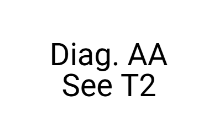

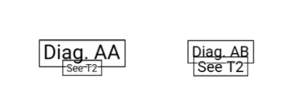
Adding a border to a Child diagram label is incorrectly adding separate borders to the diagram label and the page number, making them both difficult to read. Note that this difficulty is increased if the labels are the same font size.

Mark symbols in layout sheets
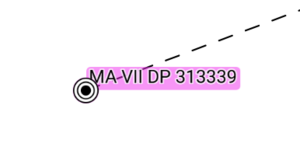
A mark symbol can sometimes become detached from its associated lines in the layout plan sheets, if you click or drag too fast. Save, close, and reopen the plan to “reattach” the mark.
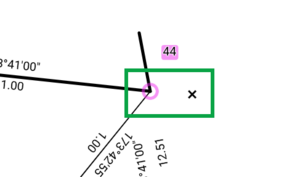
When you select the mark label for a PRM, the mark symbol won’t be highlighted pink if your browser scale is 100% or less. You can still perform any required actions as usual.


Other known issues in Plan Generation
- There can be issues when you resize your Browser/Window screen. Maximise the screen and refresh to resolve this.
Easement leaders change appearance from Layout Plan Sheets to Preview layout and compiled plans. There may be a gap between the leader and the parcel label that is not present in the layout sheets. If they are clear enough, you can submit with the space. Ensure you mention this known issue in your survey report.
Example of leader lines as they appear in Layout Plan Sheets: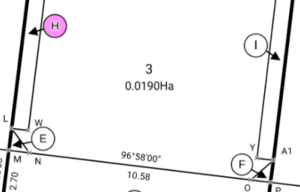
The same leader lines as they appear in Preview layout and compiled plan: