
Underlying lines layer now turned off by default in survey capture
July 2026
When you open a CSD in Survey Capture, the Underlying lines layer is now toggled off by default.
Note that underlying parcels will display as usual, and there are no changes to the Process balance parcel boundaries functionality.
If you want to adopt underlying lines using the Inspect and adopt or Draw to select tools, you will need to first toggle on the underlying lines layer.
- Select Layers in the Tools control toolbar.
- Expand the Lines section.
- Left-click the toggle icon next to Underlying lines to toggle on the layer.

Note: Any changes you make in the Layers panel will reset to the default settings when you exit the survey.
For more information on using layers and tools, see:
Tools control toolbar
Use Locate feature for marks, vectors, lines, and new parcels when survey is ‘read-only’
July 2026
You can now use the Locate feature function while viewing a survey that is read-only.
Locate feature is available in the:
- Marks panel
- Vectors panel
- Lines panel - irregular and right-line
- New parcels panel.
Select the 3-dot icon at the right of a row in one of these panels, then select Locate feature.

The spatial view automatically zooms to and centres on the selected feature.

You can also use Locate feature when multiple features are selected in a panel. The spatial view will adjust its scale to display all selected features.
For general information about the panels in Survey capture, see:
Workflow control bar and using the panels
For more information about surveys in read-only mode, see
Survey shows as locked
Changes to Record of Survey and Title plans
July 2026
We have changed the underlying technology that compiles survey plans in Landonline.
From 6 July, new plans will be compiled as PDF instead of TIFF in Plan Generation.
This also means that in Web Search, any plans approved or registered after 5 July will be available to download in PDF format only.
Note: Plans are recompiled at approval and deposit. All plans that change their status from submitted or approved to approved or deposited after 5 July will be in the new format.
Key changes in plans compiled after 5 July:
New look and feel:
- colour logo at top right corner
- cleaner, more readable fonts and style
- the mark and vector report is now a text-searchable PDF.

On the Survey and Title sheets:
- the Date of Survey is now on the left under Land District
- the Surveyor’s reference now appears under Surveyor and Firm.

All pages are automatically orientated when viewing or printing.

Note: When printing you may need to change the orientation to “Auto”.
For guidance on using Plan Generation, see:
Plan Generation
Section 243(e) certificate wording now includes easements in gross
April 2026
The s243(e) certificate wording in Landonline has been updated and now provides for easements in gross.

For more information about TA certification in Landonline see:
- Surveyors: TA certifications
- Territorial Authorities: Grant TA Certification support
Define diagrams – diagram selection
March 2026
When you select user-defined diagrams in Define diagrams to enlarge, reduce, or delete, they will now retain their associated colour before, during, and after selection. This will make it much easier to identify and select the correct diagram to edit.
When you select a diagram:
- its outline will become thicker
- the diagram area will be shaded with the associated colour
- the diagram label is highlighted with its associated colour.

The colours associated with each diagram type:
- Survey diagram – dark blue
- Primary diagram – green
- Non-primary diagram – orange.
For more information about defining diagrams in Plan Generation see:
Define diagrams
Layout Plan Sheets – minimum diagram size when resizing diagrams
March 2026
You can now resize diagrams in Layout plan sheets to a minimum height of 0.01m (1cm). Note that this minimum dimension was previously 0.05m (5cm).

When you resize a diagram:
- the diagram will retain its aspect ratio.
- diagram labels are not resized.
For more information about resizing diagrams in Layout Plan Sheets see:
Layout Plan Sheets | Select, move, or resize diagram
Access Create request from CSD header in survey capture
February 2026
You can now access Create request from the CSD header in survey capture.
Left-click the 3-dot menu at the right of the header, then select Create request to open Requests in a new tab.

You can still also access Requests from your My work page, via:
- the App switcher at the top left of the page
- the Main menu at the top right of the page.
For more information about survey requests see:
Requests for Survey
Set firm notice preferences
September 2025
System managers can now set your firm’s notice preferences under Account Management.
You can choose whether notices are emailed to your firm, and whether print notices are sent to your office.

For more information, see:
Set firm notice preferences
Update user privilege groups
September 2025
System managers can create and edit groups in Account Management.
You can set up your firm's Landonline users into groups, and update users’ privileges by groups.

For more information, see:
Set up, edit or remove groups
Set default text and line properties in Layout Plan Sheets
September 2025
You can pre-set the line and text properties for any new user-added lines or labels you add to your layout sheets via the Default line properties and Default text properties panel.

For more information on default lines and text properties, see:
Default line and text properties panel
Plan Generation now available in New Landonline
July 2025
You can now draft your survey plans in new Landonline. Use new Plan Generation to define and lay out diagrams for Survey and Title sheets and generate Records of Survey and Title plans for your survey dataset.

Important: Before you start working in new Plan Generation, please read:
Important information for transitioning to new Plan Generation
You can access Plan Generation from either:
Survey capture, by selecting the Plan Generation icon from the workflow control bar

My Work page, by left-clicking the CSD reference and selecting Open CSD in Plan Generation.


For full guidance on working in new Plan Generation, see:
Back to My Work from Plan Generation
July 2025
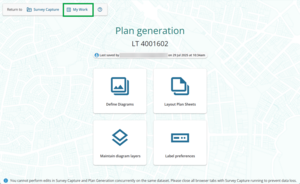
When working in Plan Generation, you now have the option to return directly to My Work instead of Survey Capture.
You can return to My Work from:
the top left of the Plan Generation landing page
Define diagrams, via Switch mode. Left-click Diagrams at the top left of the screen, then select Return to My Work
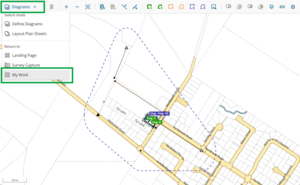
Layout Plan Sheets, via Switch mode. Left-click Sheets at the top left of the screen, then select Return to My Work.


Filter surveys by enabled user
June 2025
Under Firm surveys, you can now filter the listed surveys by enabled user. This allows you to check which surveys at your firm a specific user has access to.

The list of users in the filter will include:
- active users associated to your firm, if they are enabled to any survey
- inactive users who haven’t yet been removed from your firm, if they are still enabled to a survey
- external users who are enabled to any of your firm’s surveys.
For more information on filtering your firm’s surveys by enabled user, see:
Filter surveys by enabled user
Navigate to My messages
May 2025
You can now navigate directly to My messages within Landonline Survey.
Select the 9-dot menu at the top left of My work page to open the app switcher.
To open My messages, you can either:
select My Messages to open My messages in your current browser tab
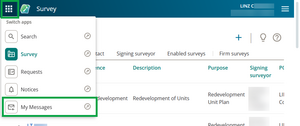
select the arrow next to My Messages to open it in a new browser tab.
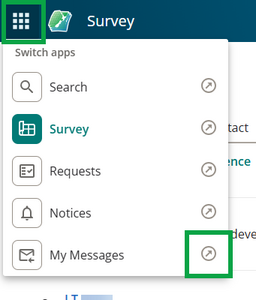


You can also still access My messages by selecting Notices in the app switcher, then selecting the My messages tab.

For more information on searching, viewing, or downloading messages, see:
My messages
How height limits are shown on the Schedule / Memorandum
May 2025
Based on your feedback, we’ve made a change to the way Upper and Lower limit columns show on the attached Schedule / Memorandum supporting document.
If no value has been entered in a height limit field, a dash will now show to identify no limit exists.

For more information, see:
Show height limits in schedule / memorandum tables
Account management - update firm details and assign user privileges
May 2025
Account management is now available in all New Landonline applications - Survey, Dealing, Web Search and TA certification - for system managers only.
This feature lets system managers update their firm contact details and manage user privileges - all within New Landonline.
To access this function, open the main menu at the top right of your landing page and select Account Management.

For more information on account management, see:
Change a firm or user's details in Landonline
Update My Profile details
April 2025
You can now update your physical and email addresses, preferred name, and phone details for notifications in all Landonline applications.
Select My Profile in the main menu to access your contact details.

You'll be taken to the My Profile page to update your details.
You can choose to use the same details for all associated firms by selecting the checkbox in the Contact addresses for notifications section.

To update contact details individually for different firms, you will need to switch your firm first from the header.
Changing your email address
Changing your email will also update your default email to receive Web Search orders.
Note that it can take 5 to 10 minutes for emails to update across your applications.