
You can search for 4 types of supporting document in Web Search:
- Power of Attorney (by Name of Donor)
- Memorandum (by Number)
- Change of Trustee (by Society Name)
- Approved Form (by Number / Type)

Once you have searched for a supporting document, you can
- view details such as status or date lodged
- order a copy of the document
- add it to your product list.
Search Power of Attorney (by Name of Donor)
1. Enter the donor’s name into the search field
You can enter the name of an individual, corporation, or trust. As you type, the drop-down list populates with donor names containing the best match. As you enter more characters, the results are refined to match your input.
You can’t use wildcards for Search Power of Attorney.

2. Select the required donor name from the drop-down list to view the search results

The top of the Search results screen shows:
- what you searched for
- the number of records found for that search.
Below, you will see a list of all power of attorney supporting documents for the searched donor name.

Each supporting document in the list shows:
- Document ID
- Details (donor name)
- Status
- Date lodged
- Order options for the document. For more information about order options, see:
Order supporting document or add to product list
Search Memorandum (by Number)
1. Enter the memorandum number into the search field
As you type, the drop-down list populates with results containing the best match. As you enter more characters, the results are refined to match your input.

2. Select the required memorandum number from the drop-down list to view the search results

The top of the Search results screen shows:
- what you searched for
- the number of records found for that search.
Below, you will see a list of any memorandums with the searched number.

Each supporting document in the list shows:
- Document ID
- Details (memorandum number)
- Status
- Date lodged
- Order options for the document. For more information about order options, see:
Order supporting document or add to product list
Search Change of Trustee (by Society Name)
1. Enter the society’s name into the search field.
As you type, the drop-down list populates with society names containing the best match. As you enter more characters, the results are refined to match your input.
You can’t use wildcards for Search Change of Trustee.

2. Select the required society name from the drop-down list to view the search results

The top of the Search results screen shows:
- what you searched for
- the number of records found for that search.
Below, you will see a list of all change of trustee supporting documents for the searched society name.

Each supporting document in the list shows:
- Document ID
- Details (society name)
- Status
- Date lodged
- Order options for the document. For more information about order options, see:
Order supporting document or add to product list
Search Approved Form (by Number / Type)
1. Enter the approved form’s type and/or number into the search field.
You can enter the approved form type, number, or both the number and form type. As you type, the drop-down list populates with results containing the best match. As you enter more characters, the results are refined to match your input.

2. Select the required approved form type or number from the drop-down list to view the search results

The top of the Search results screen shows:
- what you searched for
- the number of records found for that search.
Below, you will see a list of all approved form supporting documents for the searched type or number.

Each supporting document in the list shows:
- Document ID
- Details (approved form type)
- Status
- Date lodged
- Order options for the document.For more information about order options, see:
Order supporting document or add to product list
Order supporting document or add to product list
You can order:
- a single supporting document directly from the search results screen
- multiple supporting documents by adding them to your product list, then ordering them from there.
Order single supporting document from search results
You can order a copy of a supporting document without adding it to your product list.
Select an icon to order the supporting document:
a. emailed to you
b. to view on screen
c. downloaded as PDF.

Add supporting documents to product list
Once items are added to your product list, you can order multiple items at once. For more information about ordering from the product list, see:
Order item(s) from the Product list
To add supporting documents to your product list:
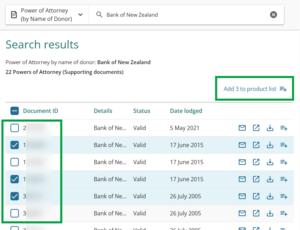
Select the checkboxes next to any documents you want to add to your product list. The number of selected documents is shown at the top right of the list.
To select all documents in the current search results screen, select the checkbox at the top of the list next to Document ID. To deselect all, untick the top checkbox.
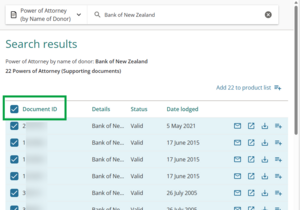


Where there are more than 50 results, only the 50 on the current page are selected. To select more, you will need to view further pages of results and continue selecting all.
In the image below, there are 64 results, but only the 50 documents from the first page of results are currently selected.

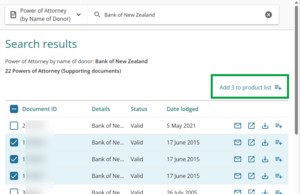
Once you have selected the required documents, left-click Add x to product list. The selected items are immediately added to the product list.
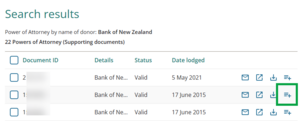
You can also add a single document to your product list, by selecting the Add to product list icon next to order options for the document.


Restricted items are unavailable to view or download
Some supporting documents are restricted, for example documents with a status of Pending. Only LINZ staff are authorised to view or download these. You will not be able to add these to your product list.
