
You can search for statutory actions in Web Search by type:
- Gazette Notice
- Statutory Vesting
- Vesting on Deposit
- Other Statutory Actions.
From the drop-down, under Other search types select Statutory Action.

Once you have searched a statutory action, you can:
- view details such as date recorded or statute and section
- view affected parcels
- from an affected parcel’s summary page, view an image of the statutory action, if available.
Images not available for all statutory actions
Not all parcels will have an attached image, and some statutory actions may not have an associated image at all.
A parcel’s summary page lists all its affecting statutory actions. You can also use Web Search’s parcel search functions or the spatial map to access these.
Search parcel
For more information on statutory actions, see:
Types of property records that can be searched for - Statutory actions
1. Select statutory action search type
The search type for search statutory action defaults to Gazette Notice.

Left-click into the statutory action type field to select a different search type:
- Statutory Vesting
- Vesting on Deposit
- Other Statutory Actions.

2. Enter search inputs and select Search
The search input fields depend on the statutory action type you select. You will need to complete at least 1 field to initiate the search.
- You will get more refined search results with more search inputs entered.
- You don’t need to complete all fields to initiate a search.

Once you have completed the minimum required information, the Search icon will change to blue. You can then left-click the icon to initiate the search and view the search results.

Search inputs: Gazette Notice

Choose a Gazette from the drop-down list. This defaults to New Zealand Gazette. You can:
- scroll through the list to find a specific Gazette
- type to filter the list.

If you choose (None), you will need to complete at least 1 other search input field before initiating your search.
Complete as many of the remaining fields as needed to get more refined search results:
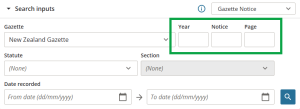
Type in a Year, Notice, and/or Page.
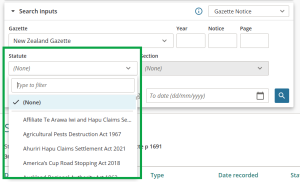
Choose a Statute from the drop-down list. You can scroll through the list to find a specific statute, or type to filter the list.
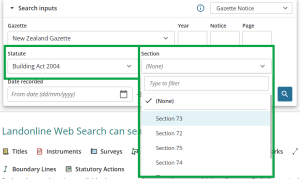
If you have selected a Statute, the Section input becomes active. This defaults to (None). You can choose a specific section of the selected statute from the drop-down list.
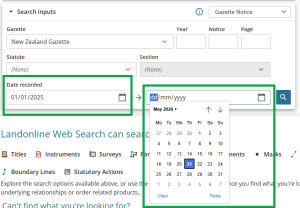
You can enter a date range for the date the statutory action was recorded, by selecting:
- a date ‘from’ in the left-hand box, and/or
- a date ‘to’ in the right-hand box.
The ‘from’ date cannot be after the ‘to’ date.
Either type the date(s) into the field or select the date via the calendar icon at the right of each date field.


Search inputs: Statutory Vesting
You need to complete at least 1 field to initiate a search.

Choose a Statute from the drop-down list. You can scroll through the list to find a specific statute, or type to filter the list.

If you have selected a Statute, the Section input becomes active. This defaults to (None). You can choose a specific section of the selected statute from the drop-down list.

You can enter a date range for the date the statutory action was recorded, by selecting:
- a date ‘from’ in the left-hand box, and/or
- a date ‘to’ in the right-hand box.
The ‘from’ date cannot be after the ‘to’ date.
Either type the date(s) into the field or select the date via the calendar icon at the right of each date field.

Search inputs: Vesting on Deposit
You need to complete at least 1 field to initiate a search.

Enter a DP or DPS Plan number.
- Any survey plans with the same number will appear in the list.
- Select the correct survey from the drop-down list.

For pre-Landonline surveys, ensure you select the survey you need from the correct land district.
Choose a Statute from the drop-down list. You can scroll through the list to find a specific statute, or type to filter the list.

If you have selected a Statute, the Section input becomes active. This defaults to (None). You can choose a specific section of the selected statute from the drop-down list.

You can enter a date range for the date the statutory action was recorded, by selecting:
- a date ‘from’ in the left-hand box, and/or
- a date ‘to’ in the right-hand box.
The ‘from’ date cannot be after the ‘to’ date.
Either type the date(s) into the field or select the date via the calendar icon at the right of each date field.

Search inputs: Other Statutory Actions
You need to complete at least 1 field to initiate a search.

Type your search into the Other Legality field. This field returns results as you type. Select a result from the drop-down list.

You can enter a date range for the date the statutory action was recorded, by selecting:
- a date ‘from’ in the left-hand box, and/or
- a date ‘to’ in the right-hand box.
The ‘from’ date cannot be after the ‘to’ date.
Either type the date(s) into the field or select the date via the calendar icon at the right of each date field.

3. View search results
The top of the Search results screen shows:
- what you searched for
- the number of records found for that search.
Below, you will see a list of all statutory actions matching your search inputs.
Each statutory action in the list shows:
- Description
- Type
- Date recorded
- Statute and section (if applicable)

Left-click the Description to go to the statutory action’s summary page and see details of the affected parcels.
For more details about the statutory action summary page, see:
Statutory action summary page
Refine search results when multiple statutory actions found
When your search returns multiple results, you can refine the search by clicking the Search inputs panel to re-open it.

Complete additional search fields to refine your search, then click the Search icon to view your results.
4. Statutory action summary page
The statutory action summary page shows:
- a summary of the statutory action’s details
- a list of parcels affected by the statutory action.

To view an image of a statutory action, check the summary page of affected parcels. Note that not all parcels will have an attached image, and some statutory actions may not have an associated image at all.
Affected parcels
Parcels affected by the statutory action are listed on the statutory action summary page.
You can:
- left-click the Parcel ID to view the parcel summary page. If an image of the statutory action has been attached to the parcel, you can view or download it from here.
See Search parcel – Statutory Actions - view details of how the statutory action affected the parcel
- select the Locate spatial item icon to view the parcel on the map
- select the Add to product list icon to add the parcel to your product list.
