
Landonline users with signing rights are allocated a digital certificate (DC) to certify and sign dealings, sign and submit surveys, or sign Territorial Authority certificate packages. The DC needs to be renewed every 2 years.
Apply for certify and sign rights for Landonline
You’ll generate your DC and download it onto your computer via our Entrust web-based DC Loader v4. Once downloaded, you will need to move your DC file to a secure, accessible location ready for use when signing.
DC Loader 3.1 software is no longer required
Our new web-based DC Loader v4 runs entirely through your web browser, so the old DC Loader 3.1 is no longer required. If you still have DC Loader 3.1 installed, speak to your IT team about uninstalling.
1. Terms and conditions
Before you download your digital certificate you need to read Schedule 1 – Digital Certificate user obligations of the Landonline terms and conditions:
Landonline terms and conditions
By downloading your digital certificate, you accept our terms and conditions.
2. Check with your IT support person before you download your DC
Check with your Trusted Contact and IT support person that you:
- can access the Entrust DC Loader v4 website from your network
- can download digital certificate files from the internet onto your computer
- have a secure location where the DC can be saved. We recommend you create a folder named LINZ Certificates on your device for your DC. See also:
Create a LINZ Certificates folder
Compatibility
DC Loader v4 can be used on any operating system (for example, Windows, macOS) as it only requires a web browser.
3. Get your DC reference and authorisation codes ready
To download your digital certificate you need your:
- DC reference number – this is emailed to your firm’s Trusted Contact.
- DC authorisation code – this is emailed to you.
If you are the Trusted Contact or your Trusted Contact is unavailable, phone customer support on 0800 665 463 to obtain your DC reference number.
DC Passphrase
You will also need to create a DC passphrase during the DC download process. Your DC passphrase is used during signing, and should be different from your Landonline login password.
Your DC passphrase must:
- be at least 10 characters long (there is no maximum)
- contain at least 1 lowercase character, 1 uppercase character, and 1 number.
You must not share your DC codes or passphrase with anyone
While your IT support person can help you download and renew your DC, only you must enter your authorisation code, reference code and passphrase.
4. Download your digital certificate
- To download your new digital certificate, click the link below. This will open the DC Loader v4 website in a new window.
Go to DC Loader v4 website (external link)
Assistance with DC download
Please note that help content provided via the question mark and vertical ellipsis on the Entrust website does not relate directly to your Landonline DC download.
Please contact LINZ customer support on 0800 665 463 if you require assistance with your DC download.
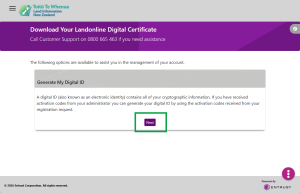
Select Next to continue.
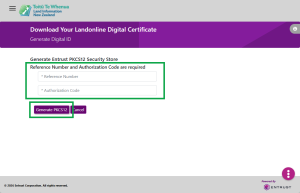
Enter your DC reference number and DC authorisation code, then select Generate PKCS12.
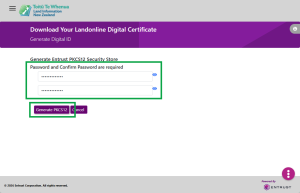
Create a DC passphrase you will use for signing and enter this in the Password field.
Note that the DC Passphrase is called a ‘password’ on the Entrust DC Loader v4 website.
Your DC passphrase must:- be at least 10 characters long (there is no maximum)
- contain at least 1 lowercase character, 1 uppercase character, and 1 number
- be different from your Landonline login password.
Re-enter your passphrase then select Generate PKCS12.


Reminder:
You must not share your passphrase with anyone.
You’ll see a confirmation message that your digital certificate (PKCS12) file will download shortly.
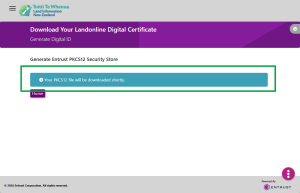
- The DC file will download to your default browser download location. This is usually the Downloads folder on your computer.
The file name will be in format:cn=userid , for example: cn=jbloggs001

cn=userid.p12 if file extensions are shown, for example: cn=jbloggs001.p12



5. Move your digital certificate to a secure location
You will need to move the DC file from your default browser download location to a secure, accessible location that:
- you can browse to the first time you sign with your new digital certificate, and
- Landonline can always access during signing.
We recommend that you create a folder named LINZ Certificates for storage of your DC if one does not already exist.
Create a LINZ Certificates folder (if required)
- Open File Explorer (Windows OS) or Finder (macOS).
- Navigate to where you want the folder saved, for example Documents or Desktop.
- Right-click in the empty space.
- Select New Folder.
- Name the folder LINZ Certificates .
- Press Enter to save the folder name.
Move downloaded DC – Windows operating system
- Open File Explorer.
- Open Downloads (or your default browser download location if this is different).
- Look for the downloaded DC file.
- Either:
- Drag and drop the DC file to your LINZ Certificates folder.
- Cut and paste the DC file to your LINZ Certificates folder. You can also use keyboard shortcuts CTRL+X to cut and CTRL+V to paste.
Move downloaded DC – macOS (Apple operating system)
- Open Finder.
- In the left-hand sidebar, look for and open Downloads under Favourites. (Open your default browser download location if this is different).
- Look for the downloaded DC file.
- Either:
- Drag and drop the DC file to your LINZ Certificates folder.
- Cut and paste the DC file to your LINZ Certificates folder. You can use keyboard shortcuts Command+C to copy and Command+Option+V to paste.
Delete your old digital certificate
Ensure you delete your old Landonline DC from your computer once you have downloaded your new DC.
Note: You may be prompted to replace the existing certificate when you move the new one to the LINZ Certificates folder. If you are prompted, choose Yes. This will replace the old DC with your new one.