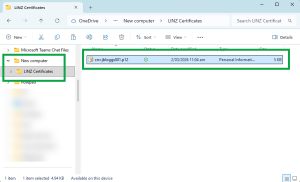
You can only store your digital certificate (DC) on 1 device at a time.
Landonline Digital Certificate user obligations state that your digital certificate must not be archived in any location. So, you must transfer it, not copy it.
We recommend you transfer your digital certificate during our processing hours so our Customer Support staff can help, if needed.
You can call Customer Support on 0800 665 463.
Before you begin the transfer
To transfer your DC you will need:
- to know where your current Landonline digital certificate is located. Generally this will be a LINZ Certificates folder in a secure location on your computer
- the passphrase for your digital certificate. Your passphrase was created when you originally downloaded your digital certificate
- to create a secure, accessible location on your new computer to store your DC
- a portable storage device, such as a USB flash drive or memory stick
- a printed copy of these instructions to refer to or display them on another device.
1. Create a LINZ Certificates folder on your new computer (recommended)
You will need to store the DC file in a secure, accessible location that:
- you can browse to next time you sign with your digital certificate, and
- Landonline can always access during signing.
We recommend that you create a folder named LINZ Certificates for storage of your DC if one does not already exist.
- Open File Explorer (Windows OS) or Finder (macOS).
- Navigate to where you want the folder saved, for example Documents or Desktop.
- Right-click in the empty space.
- Select New Folder.
- Name the folder LINZ Certificates
- Press Enter to save the folder name.
2. Find the location of your current Landonline digital certificate on your ‘old’ computer
Find your current Landonline digital certificate. This will generally be in a folder named LINZ Certificates in a secure location on your computer.
If you can’t find the LINZ Certificates folder, check with your IT support, Landonline Trusted Contact, or a colleague to find where Landonline digital certificates are usually stored.

3. Select and cut your digital certificate
Find your Landonline digital certificate in the folder and right click on the file.
A menu will appear. Select Cut.

Note: If you prefer, you can drag and drop the file to the portable storage device.
4. Insert your portable storage device
Insert your portable storage device into your device’s USB port.
The device will appear in your list of drives.
5. Select the drive to paste your digital certificate
Right click on the drive for your portable storage device.
A menu will appear. Select Paste.
Your digital certificate will paste into the portable device drive.
6. Remove the device from your computer
Your digital certificate is now on your storage device. Remove the device from your computer.
7. Insert your portable storage device into the new computer
Insert your portable storage device into the new computer’s USB port.
8. Open the USB Drive and cut the digital certificate
Find the USB Drive under File Explorer and click on it to open it.
Right click on your digital certificate file to open a menu. Select Cut.
Note: If you prefer, you can drag and drop the file to the LINZ Certificates folder.
9. Paste the digital certificate into the chosen secure location on your new computer (LINZ Certificates folder)
- Navigate to the LINZ Certificates folder or other secure location you’ve chosen to store your DC.
- Right click anywhere in the folder. A menu will appear.
Select Paste.
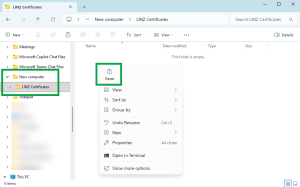
Your digital certificate will now appear in the LINZ Certificates folder.