
About merging irregular lines
You will most commonly merge 2 intersecting captured irregular lines where:
- you have captured a new irregular line (for example a water boundary), and
- it intersects with an existing irregular line that you have adopted into your survey.
Merging irregular lines splits the segments at the intersection(s) of the existing and new lines. You can then delete unnecessary line segments from the existing irregular boundary line.
Example of when you may capture new irregular lines in your survey include:
- areas of accretion and erosion have changed the irregular boundary.
- a new definition of an irregular boundary captured for your survey is considered to be a better definition, and will replace an existing irregular boundary definition.
In these instances, the existing irregular boundaries may intersect with the new irregular boundary lines. This creates parcels and boundary line segments that are not required as part of the final survey parcel definitions.
Merging irregular lines can create pseudo vectors.
Pseudo vectors are system-calculated vectors between a system-added mark and a nearby existing surveyed or Landonline mark.
- Pseudo vectors hold the positions of intersected irregular boundary lines until the new positions are authorised.
- Because pseudo vectors are automatically determined by Landonline, and are not calculated by the signing surveyor, dimensions of those pseudo vectors should not be adopted in future surveys.
- You should not delete pseudo vectors unless you need to delete the system-added mark. In this case, you are better to replace the original irregular boundary.
- System-added pseudo vectors are automatically created in the Non-boundary layer, therefore they will have no survey class.
How to merge irregular lines
You can merge 2 irregular lines during this process.
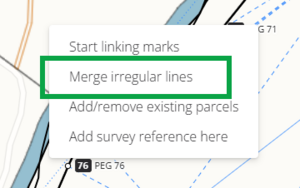
Right-click in your spatial capture to open the menu. Select Merge irregular lines.
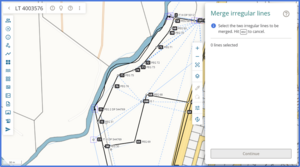
The Merge irregular lines panel appears on the right side of your spatial view.
Select the 2 irregular lines that you want to merge by left-clicking on them in the spatial view. The selected lines will highlight pink.
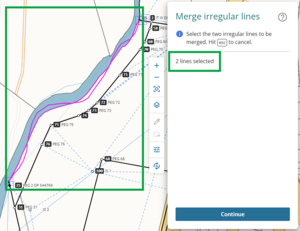


You can’t deselect lines. If you select an incorrect irregular line, or want to return to capture, press ESC on your keyboard.
Select Continue to merge the 2 lines.
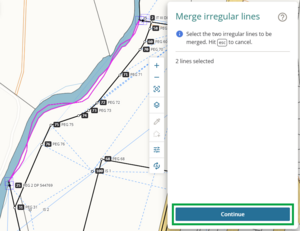
Once the lines are successfully merged, a success message will appear briefly at the top right of your screen.
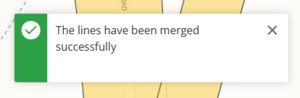


Once the Merge irregular lines process is complete
In the spatial display, the irregular lines:
- display Unmarked type System added marks at each intersection point, and
- are split into separate segments between each mark.

In the Lines panel, the Irregular lines tab shows each segment as an individual irregular line. Any attributes other than Layer will be removed after the lines are merged. You can edit these as needed, to add details such as irregular boundary type, legal description etc.
See Edit irregular boundary attributes
Each segment defaults to the Layer that its original irregular line was in. If you need to, change the layer in the Irregular lines panel.

During the merge, Landonline:
- adds system-generated marks at each intersection point
- creates pseudo vectors between the irregular lines’ existing marks and the new system generated marks.
In the Marks panel, these marks will be identified by:
- Name = LOL
- State = System Added.
These marks are ‘greyed out’ and cannot be edited.

In the Vectors panel, the pseudo vectors will appear with:
- Excl in the Marks column
- Bearing Type = Pseudo
- Distance Type = Pseudo.
These vectors are ‘greyed out’ and cannot be edited.
When you compile your plans in Plan Generation, the pseudo vectors will appear in the Mark and Vector report but won’t appear on your plan sheets.

Delete segments of irregular line that you don’t need
You can delete the segments of irregular line that you don’t require for your parcel definitions.
You can either:
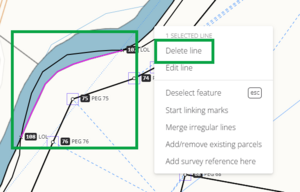
Delete line segments spatially. Select the line segment, then right-click and select Delete line.
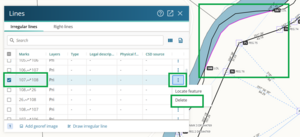
Delete the segments using the Lines panel. Select the irregular line in the panel. The line will be highlighted pink in the spatial view. Ensure you have selected the correct segment before continuing.
Select the 3-dot icon at the end of the row, then select Delete.
See also:
Delete an irregular boundary using the Lines panel


A warning will appear before you delete your line. Deleting a line is irreversible. Select Delete to continue, or Cancel to return to capture.

Warning: Deleting lines is irreversible.
If you delete a line in error and need to replace it, you will need to redraw/re-adopt both entire irregular lines. This will include:
- deleting all system added marks added during the merge process, which will remove the pseudo vectors and remaining irregular line segments
- re-adopting the existing irregular line
- re-drawing your new irregular line
- completing the merge irregular line process again.