
For more information on capture requirements for cross lease plans, see:
Cross lease CSDs - Capture requirements for cross lease plans
Under the Standard for lodgement of cadastral survey datasets (Section 4.3), existing parcels already recorded in Landonline need to be extinguished for flats or ‘exclusive use’ areas being redeveloped.
Parcels for Flat Plans / Cross Lease Plans are aspatial, that is, they have no geometry in Landonline. In many cases, these aspatial parcels cannot be extinguished.
You will need to follow the process below to identify the parcel appellations for these parcels and determine whether they can be extinguished.
You should note in your survey report where you are unable to extinguish an existing parcel in Landonline.
1. Add the underlying parcel to existing parcels panel as referenced
You can either add the underlying parcel spatially, or by searching for its appellation.
Add the parcel spatially:
Open the Existing parcels panel and select Add/remove existing parcels.

Zoom/pan to the area the survey is located. Left-click on the underlying parcel in the spatial view to select it. This should be the existing land that the cross lease dataset is over.
Select Add/remove selected parcels to add the parcel to the Existing parcels panel.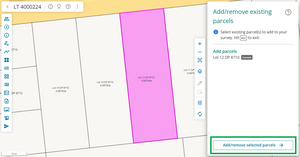
The parcel will appear in the panel, with its action set to Extinguished. Double-click on “Extinguished” to open the Action menu.
Select Referenced.


Add the parcel by searching its appellation:
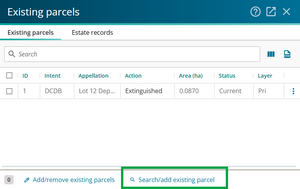
Open the Existing parcels panel and select Search/add existing parcel.
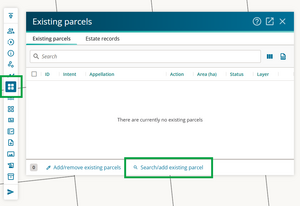
Enter the underlying parcel’s appellation in the Appellation field. This should be the existing land that the cross lease dataset is over.
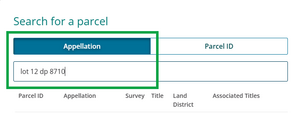
Tick the box to the left of the correct parcel and select Add to existing parcels.
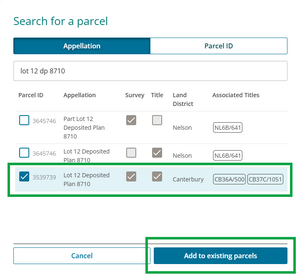
The parcel will appear in the existing parcels panel, with its action set to Extinguished. Double-click on “extinguished” to open the Action menu.
Select Referenced.


2. Add title references for existing flats to estate records and find their legal description
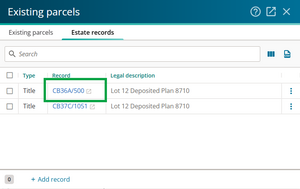
Open the Existing parcels panel and select the Estate records tab.

Select +Add record.

Double-click in the Record field to add title references for each of the cross leases for the land under survey.

Titles related to the underlying parcel added to the existing parcels panel will appear in the drop-down. Select a title reference from the list, or enter a title reference in the free-text field.

Repeat steps 2 and 3 until all cross lease title references for the land under survey are listed under Estate records.

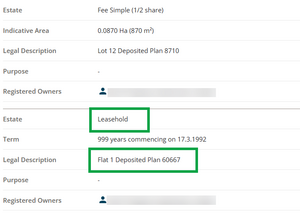
Select the title reference link in the list to open its summary in Web Search and review the estates for each of the titles. This will open in a new tab in your browser.
Take note of the legal description for the Leasehold estate for each cross lease title.


3. Check cross lease parcels and extinguish if possible
Open the Existing parcels panel and select Search/add existing parcel.
Enter the legal description of the cross lease title into the Appellation field. Any parcels with matching appellations will appear in the panel.
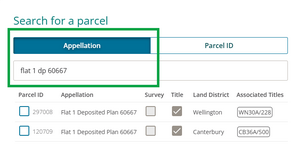
Review the Survey and Title tickboxes for the cross lease parcel.
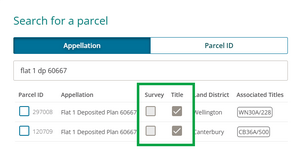
- Title is ticked, Survey is unticked:
If only Title is ticked, do NOT add the parcel to the existing parcels panel. Note in your survey report that this parcel cannot be extinguished in Landonline.
Both Survey and Title are ticked:
If both Survey AND Title are ticked, you can extinguish the parcel. Tick the box to the left of the correct parcel and select Add to existing parcels.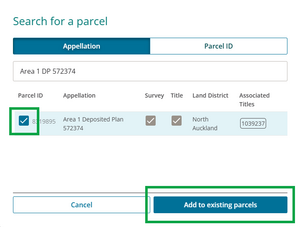
The parcel will appear in the existing parcels panel, with its action set to Extinguished.
- Title is ticked, Survey is unticked:
- Repeat the process for all cross lease parcels being redeveloped in your survey.


Existing lease and covenant parcels NOT being redeveloped should not be extinguished. You can add these to the existing parcels panel as Referenced.