
You may occasionally encounter an issue where your newly captured irregular lines:
- appear to have been right-lined in survey capture
- don’t appear in Plan Generation layout sheets.
Irregular lines can be:
- adopted directly from Landonline (providing the depiction is correct in terms of underlying CSDs)
- digitised and imported into Landonline from 3rd party software
- digitised manually in Landonline from an imported image.
You may experience problems under options (b) and (c) if the topology of abutting parcels affected by the new irregular line has not been respected.
What causes irregular lines to not display correctly
Landonline runs a check to identify mandatory and optional missed marks when a parcel is linked:
- for the first time
- following a spatial edit in mark or vector capture.
This process allows you to incorporate these marks into your survey as system added marks.
If you use this process to incorporate a missed mark into your survey, and the closest captured line to the mark is an irregular line, then:
- in survey capture, your irregular line may no longer look like how you captured it and look right-lined
- in Plan Generation layout sheets, your irregular line will not be shown at all.
Example:
You have captured an irregular line, and Landonline has identified a missed mark along this line during parcel linking.
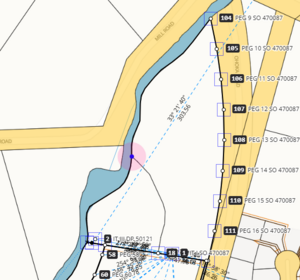
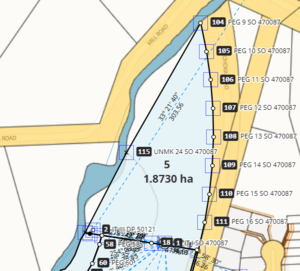
You have included the missed mark and linked the parcel. The irregular line is now right-lined.
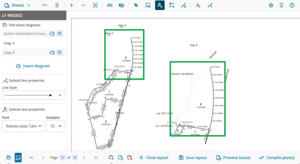
In Plan Generation, the line is missing from the diagrams in your layout sheets.


How to get your irregular lines to display in layout sheets
There are 3 ways to fix this, depending on whether your irregular line has right-lined in capture or not.
Option 1: If irregular line looks correct in capture after missed marks have been included
If Landonline hasn’t made your irregular line appear as a string of straight lines between the system added marks:
- Spatially select the marks along the irregular line that were added as 'System Added' marks (these may have been mandatory or optional missed marks). Right-click on a selected mark and select Delete mark(s). This removes the marks from Capture.
- Link the marks at the start and end position of your irregular line to the underlying marks in Landonline.
Turn on the Underlying marks layer.
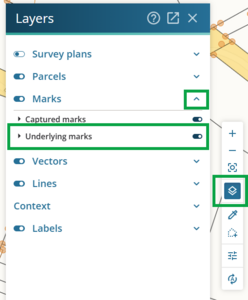
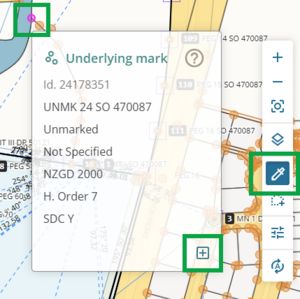
Using the Inspect and adopt tool, select each missed mark you need to include in your capture and adopt it by clicking the Adopt this mark icon at the bottom right of the mark info panel.
- Draw a new irregular line between each of the marks along the boundary, as segments that follow the path of the irregular line.
- Delete the original irregular line. You can delete the irregular line:
- from the irregular lines panel, or
- by selecting it on screen, then right-click and select Delete line.
- Link your parcels. Only optional missed marks should appear along your irregular boundary. Do not accept these.
- Open Plan Generation layout sheets. The irregular line will now display.


Option 2: Edit in your third party software and re-import
- Go back to your third party software. Make sure you include all marks relevant to the adjoining or underlying parcels where the irregular line is to be positioned.
- Digitise the irregular line, segment by segment, between the now adopted marks.
Note:
Calculate ties to these adopted marks to ensure that the XML file will import into Landonline. The Landonline Import process expects all coordinate points to be connected by vector.
- Write the XML file and import into your CSD. Note that this will overwrite your existing data in Landonline.
- Make the necessary capture edits to satisfy all capture and pre-validation rules.
- Open Plan Generation layout sheets. The irregular line will now display.
Option 3: If Landonline has right-lined your irregular line after missed marks were included
If Landonline has made your irregular line appear as a string of straight lines between the system added marks:
- In Capture, delete the ‘straight-lined’ irregular boundary.
- Check that the marks at the start and end position of your irregular line are linked to the underlying marks in Landonline.
Turn on the Underlying marks layer.
Using the Inspect and adopt tool, select each missed mark you need to include in your capture and adopt it by clicking the Adopt this mark icon at the bottom right of the mark info panel.
- Re-draw the irregular boundary from an imported image. You will draw a new irregular line between each of the marks along the boundary, as segments that follow the path of the image.
- Link your parcels. Only optional missed marks should appear along your irregular boundary. Do not accept these.
- Run Pre-validation.
- Open Plan Generation layout sheets. The irregular line will now display.
How to prevent this issue with irregular lines
If your dataset is intended to have a new irregular boundary, you need to investigate whether any marks along the irregular boundary might be mandatory or optional missed marks.
See Missed marks
What to do if there are mandatory or missed marks
- Adopt any mandatory missed marks into the dataset before any new boundaries are digitised.
If the mandatory or optional missed marks are not correct in Landonline, you will need to raise an exception request to have the incorrect marks moved or removed before you link parcels.
- If either mandatory or optional missed marks are included during the parcel linking process, the digitised irregular line will become right-lined and need to be re-drawn.
More information on capturing irregular boundaries
For more information on capturing irregular boundaries, see: