To find a Node ID for an existing mark
What to do
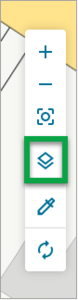
Select the Layers icon from the toolbar on the right-hand side of the spatial view.
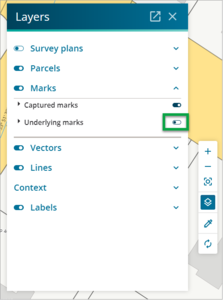
Turn on the underlying marks from the Marks list.
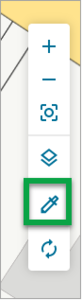
Select the Inspect and adopt icon from the toolbar on the right-hand side of the spatial view.
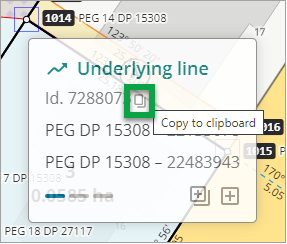
Left click on the existing mark. A detail panel will display the information for that mark. The node id is the first number in the list. Hover the mouse pointer over the node id to display the Copy to clipboard icon.


Link a captured mark by Node ID
What to do
Once you have the Node ID copied to the clipboard, or if the Node ID is known, you are ready to link a captured mark by Node ID.
- Open the Marks panel.
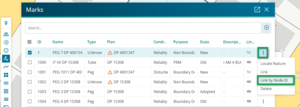
Select the three-dot icon and then select Link by Node ID.
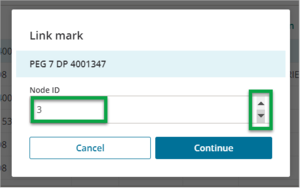
A pop-up window will appear. In the Node ID field, type in the Node ID if known, or use CTRL+V (or right click and select Paste) to add the Node ID number. You can use the arrows, or arrow keys, to increase or decrease the node ID value by 1 number.
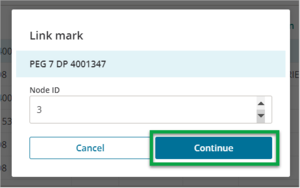
Select Continue to continue, or Cancel to cancel the operation.
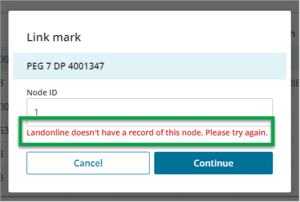
If the node number is not valid, you see an error message. Enter the correct node ID number and select Continue again.
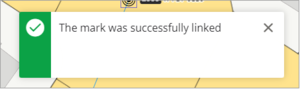
If the Node number is valid, you see a pop-up message confirming the mark was successfully linked and the node will show as linked in the Marks panel.