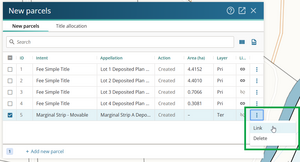
A movable marginal strip is captured spatially as a non-primary parcel.
See also:
Parcel intent usage: Marginal Strip – Movable
For further guidance on movable marginal strips, see:
Recording movable marginal strip and esplanade strip parcels
How to capture a movable marginal strip parcel
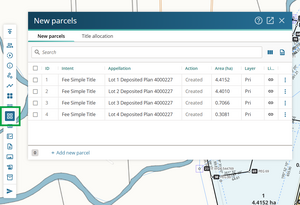
Select New parcels in the Workflow control bar to open the New parcels panel.
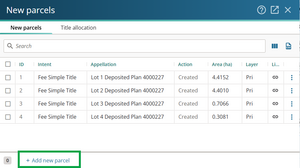
Select + Add new parcel.
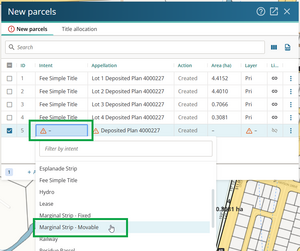
Double-click the Intent field for the new parcel. Select Marginal Strip - Movable from the dropdown list.
Open the Appellation panel by double-clicking in the Appellation field for the new parcel.
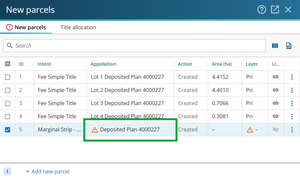
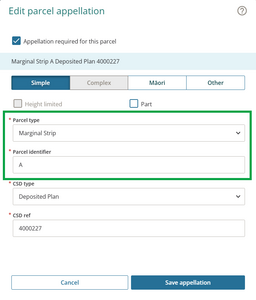
Select:
- Parcel type = Marginal strip
- Parcel identifier = enter a unique parcel identifier for the parcel, for example, A
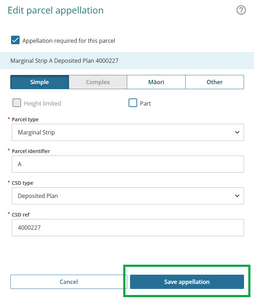
Select Save appellation.
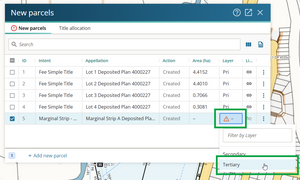
Double-click the Layer field for the Movable marginal strip parcel. In most cases the layer will be Tertiary. Select Tertiary.


Do not show an area for movable marginal strip parcel
While you must depict the movable marginal strip on a Diagram of Parcels, do not show a separate area for the marginal strip parcel. You need to include the area of the strip in its associated primary parcel.
Link the parcel by left-clicking the 3 dots at the end of the row, and selecting Link.