
How to edit a mark in the Marks panel
In the Marks panel, double left-click on the field you want to edit, then make any changes. Your changes are automatically saved.
You can:
- right-click to spell check information or copy and paste information from one field to another
- use the Tab key to move to the next field.
You can also navigate through panels using just your keyboard.

How to change mark type without changing mark name
When you change a mark’s type, by default Landonline automatically updates its name type to match, and vice versa (i.e. if you change the Name type field - the Type automatically updates).

You can toggle the automatic mark name update off or on as needed:
In the Marks panel, double-click into the Type field.
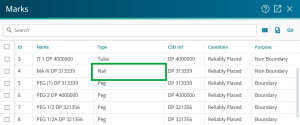
A list of types is displayed in the drop-down. At the top of the drop-down is the Also update mark name toggle.
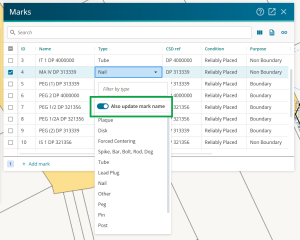
- Switch the toggle to OFF to be able to change mark type without updating mark name (and to change mark name without updating mark type).
- Switch toggle to ON to automatically update mark name when changing mark type (and automatically update type when changing name).


Note: The toggle will retain its last setting, even when working in different datasets.