
After you submit a survey, if the validation process identifies items that need attention, the survey will be requisitioned by Toitū Te Whenua LINZ and returned to your workspace.
On your My work page the CSD reference will reflect that the survey has been requisitioned:
- The survey status changes from Submitted to On requisition.
- The icon changes from a lock to an exclamation icon. The survey is now unlocked so you can edit it and make any necessary changes to the captured data.
- The row has a yellow bar at the far left to identify that the survey is on requisition.

For information on common survey requisition items, see:
Survey requisitions - common items
Requisition notices
When a survey is requisitioned, Landonline automatically sends a notice to the signing surveyor to alert them to the requisition. These notices are emailed to the email address recorded in the Contact Details tab in My Profile.
To change your email address for notifications, see:
Change your contact details
A copy of the requisition notice will also appear in Notices:
- If you are the signing surveyor for the survey, you will find this in My notices as PDF and in My Messages in either RTF or PDF format.
- All users at your firm will also be able to find and download the requisition notice as PDF in Firm notices.

For help with accessing the Notices application, see:
Notices
For information on how to download a notice in its original file format, see:
My messages
What to do when you receive a survey requisition
When a survey is requisitioned, the survey is unlocked so you can access it to make any required edits, attach your response to the requisition, and resubmit the survey.
1. Action the requisition items to make the dataset compliant.
If you change data in the survey to make it compliant, you may need to:
- recapture data
- relink parcels
- regenerate the CSD plans.
If the changes you make require new TA certification, you’ll either need to notify the TA, or scan and attach the new certificates as supporting documents.
2. Respond to the requisition
Document your reply and detail the changes made, either in the Requisition Notice document or as a separate report.
Attach your response as a supporting document with the type of Response to Requisition Notice.
For help with opening a requisition notice received as PDF, see:
Responding to a PDF requisition notice
For help attaching your response to the survey, see:
Add supporting documents
3. Resubmit the survey
If you change the number of parcels in the survey, the submission fees are recalculated with reversals and a total fee difference. This is outlined in the Fees tab of the Sign and Submit panel. See the diagram below as an example:

If there is no change to the number of parcels, then the fees tab will show No changes to fees.

When the survey is re-submitted, the dataset is locked again. On the My Work page the CSD reference will show the lock icon and the survey status changes back to Submitted, with the new submission date.
For more information on submitting your survey, see:
Sign and submit
How to query a requisition
If you wish to query the requisition, you can submit a Requisition Clarification or Requisition Review request from the Requests application.

Requisition clarification
If a requisition needs clarifying, or you disagree with a requisition, to request clarification you can either:
- phone or email the Customer Regulatory Specialist processing your CSD. Their contact details are included on the requisition notice.
- submit a Requisition Clarification request using the Requests application. When the Customer Regulatory Specialist receives the request, they will contact you to discuss the issue within 2 working days.
Requisition review
A requisition review is a formal review of a requisition. It can be requested before or after approval of a survey.
To request a requisition review, please complete a Review of Survey Requisition form (attachment below) and attach it to a Requisition review request in the Requests application.
If possible, please use the Requisition clarification process above to query a requisition. You will find it a faster process than a review.
When completing the form, please provide a reason why you think the requisition is invalid. The Cadastral Survey Rules 2021 were set at a level to mitigate significant risks to the cadastre, so all rule failures are considered important.
Once Toitū Te Whenua LINZ receives your request, we will investigate and communicate the outcome of the review to you.
Responding to a PDF requisition notice
When Toitū Te Whenua LINZ requisitions one of your surveys, the notice you receive outlining the reasons for the requisition may be in PDF rather than RTF format.
You can either edit the PDF, if you have PDF editing software, or open the PDF document in your word processing software, for example MS Word, to add your response.
Warning:
Do not use your PDF editor’s comments functionality to add notes – these will be stripped out by Landonline when the PDF is uploaded to your supporting documents.
Below we provide examples of 2 methods you can use to open the PDF as an MS Word document. Note that your word processing software may work differently.
Method 1: Open the PDF from within Word
- Download the PDF Requisition Notice from Notices, My messages, or the email Toitū Te Whenua LINZ sent you.
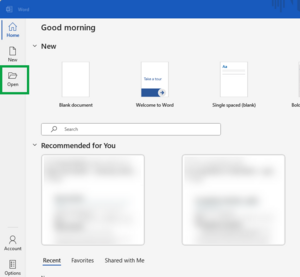
Open Word and select Open.
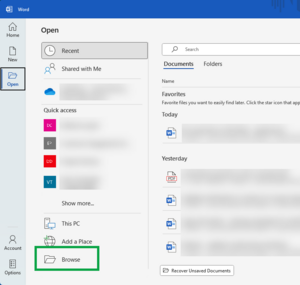
Select Browse.
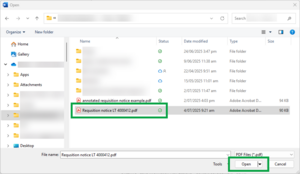
Select the drop-down arrow next to the document type. Then select either:
- PDF Files (*.pdf) - to choose from PDF files in file explorer
- All Files (*.*) - to choose from all files in file explorer

Browse to the requisition notice you want to open. Select it, and then select Open.
You will see a message warning you that you are about to convert your PDF to an editable Word document. The original PDF will be unchanged. Select OK.

Add your comments to the Word document. Once complete, save the Word doc as a PDF.
To return the PDF, attach it as a Supporting Document in Landonline with the document type of Response to Requisition Notice.
See also Add supporting documents


Method 2: Navigate to the PDF and use the 'Open with' function
- Download the PDF Requisition Notice from Notices, My messages, or the email Toitū Te Whenua LINZ sent you.
- In File explorer, navigate to the PDF or use the Search function to locate the PDF requisition notice.
Right-click on the PDF and select Open with. If Word appears in the list, select it, otherwise select Choose another app.
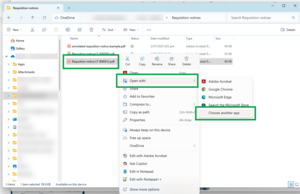
Select Word from the list, then select Just once or OK depending on your system.
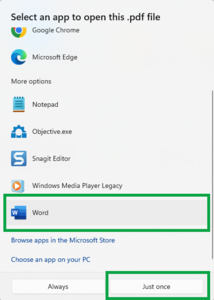
Word will open and you will see a message warning you that you are about to convert your PDF to an editable Word document. The original PDF will be unchanged. Select OK.
Add your comments to the Word document. Once complete, save the Word doc as a PDF.
To return the PDF, attach it as a Supporting Document in Landonline with the document type of Response to Requisition Notice.
See also Add supporting documents

